Threshold
Turns a picture into a hard black and white mask by comparing every pixel against a level.
The Threshold node makes a mask. Every pixel is compared against a level you set, and comes out either white or black. It is how you turn a soft, cloudy picture into a crisp shape.

- One picture in, one out
- Compare against one level, or keep only a band between two
- Soften puts a controlled fade back on the edge
- Found under Texture in the add-operator list
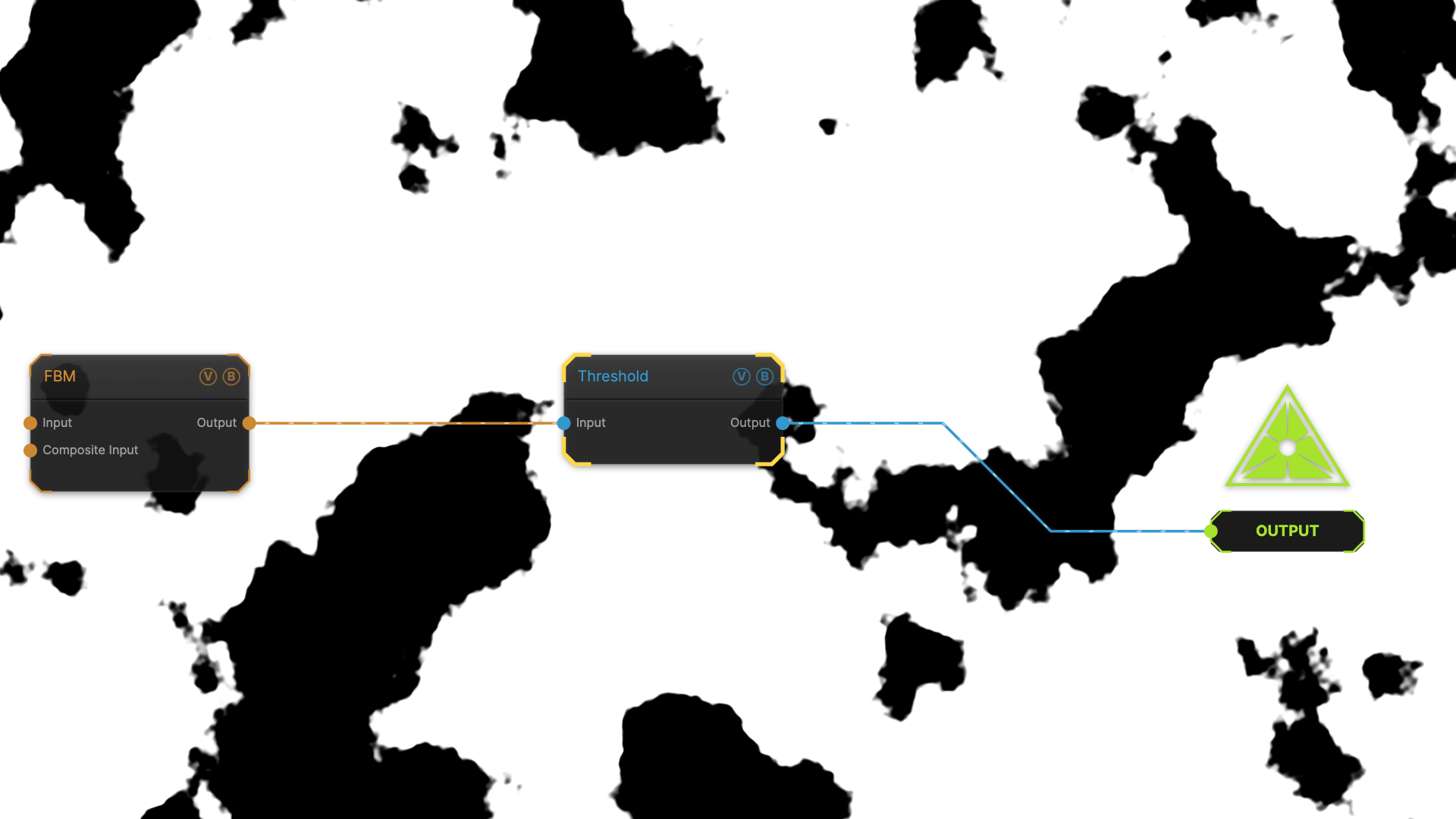
The image on the right is the example patch itself — drag and drop it onto the app (or load it with File → Load) to open the full graph.
Inputs and outputs
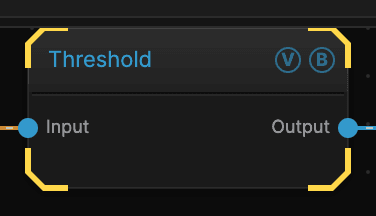
| Port | Type | Purpose |
|---|---|---|
| Input | Texture | The picture to work on |
| Output | Texture | The result |
Parameters
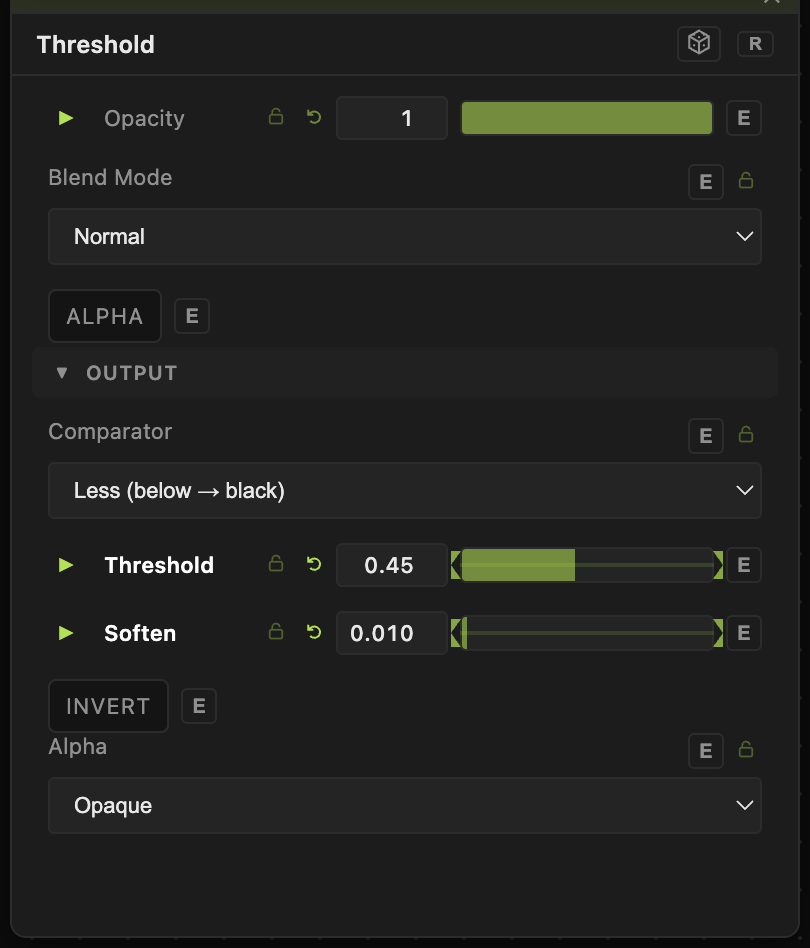
Opacity, Blend Mode, ALPHA — the standard operator header, on every operator. See Parameters and Controls.
- Comparator — how each pixel is judged. The simple options keep everything above or below Threshold; the band options keep only what falls between two levels.
- Threshold (0–1, default 0.5) — the level to compare against.
- Band Mode, Band Width (0–1, default 0.25), Band Position (0–1, default 0.5), Band Min (default 0.35) and Band Max (default 0.65) — the band to keep, described either as a width around a centre or as two edges. Only the pair that matches the mode you picked is shown.
- Clamp (No Wrap) (default off) — stops a band that runs off the end of the range from wrapping around to the other end.
- Soften (0–0.5, default 0) — fades the edge instead of cutting it hard. A small amount removes the jagged staircase on a diagonal edge.
- Invert (default off) — swaps which side comes out white.
- Alpha — whether the result is fully opaque, or carries the mask in its transparency so the black parts are see-through.
Troubleshooting
The whole frame went black or white — Threshold is past the range of the input. Noise generators usually sit around the middle, so start near 0.5 and move slowly.
The edges look jagged — raise Soften slightly. A value around 0.01 is usually enough.
A Multiply further down the chain does nothing — check the Alpha setting. An opaque mask and a see-through one behave very differently once something blends with them.