Lookup
Remaps every colour through a colour table, from a file or from another picture.
The Lookup node swaps colours for other colours using a table. Point a grey picture at a colourful strip and it comes out coloured; point a finished picture at a grading table and it takes on that whole look.
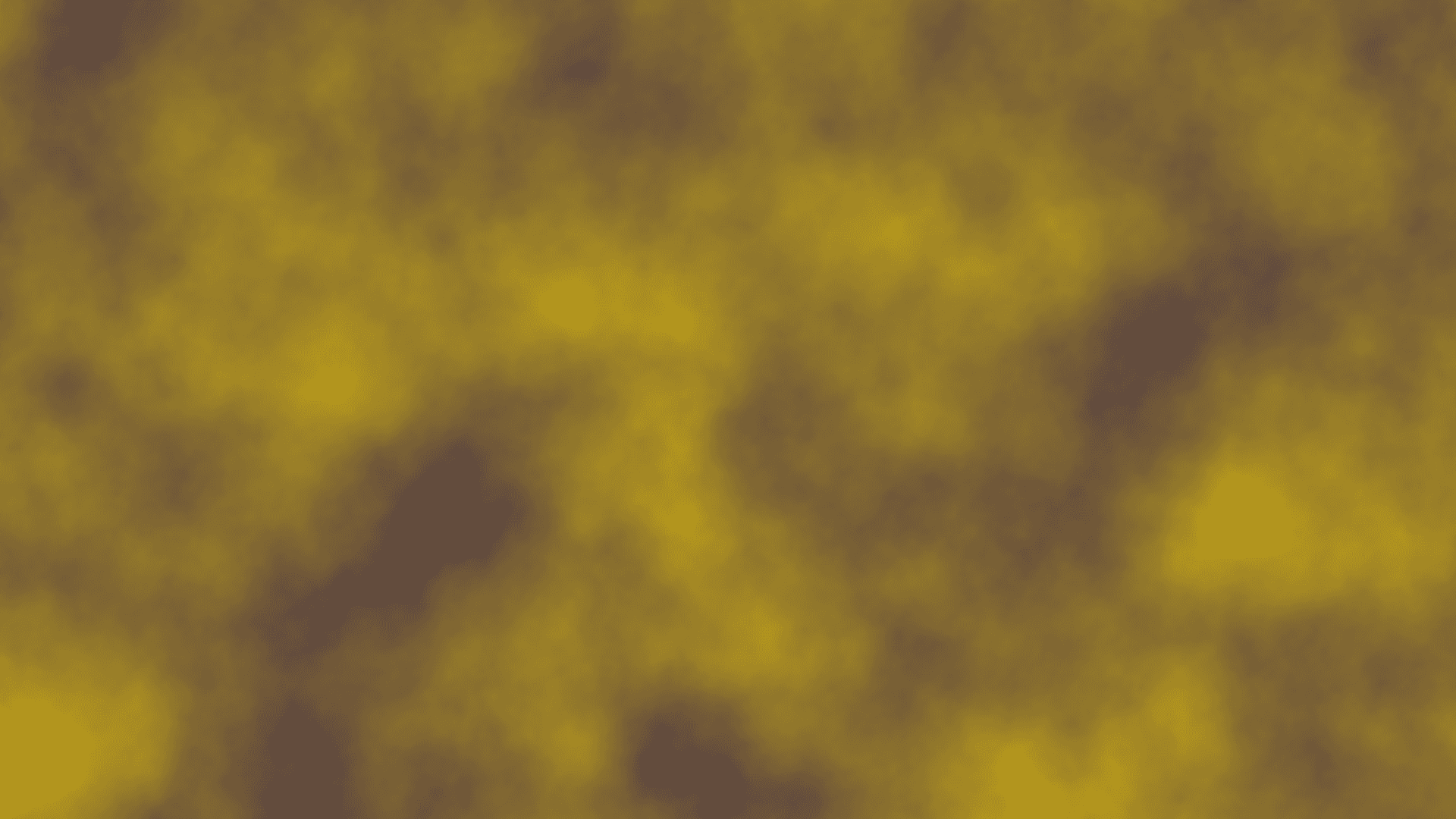
- One picture in, plus a table on a second input; one out
- The table can be a
.cubefile, a lookup image, or any wired picture - Strength fades between the original and the remapped result
- Found under Texture in the add-operator list
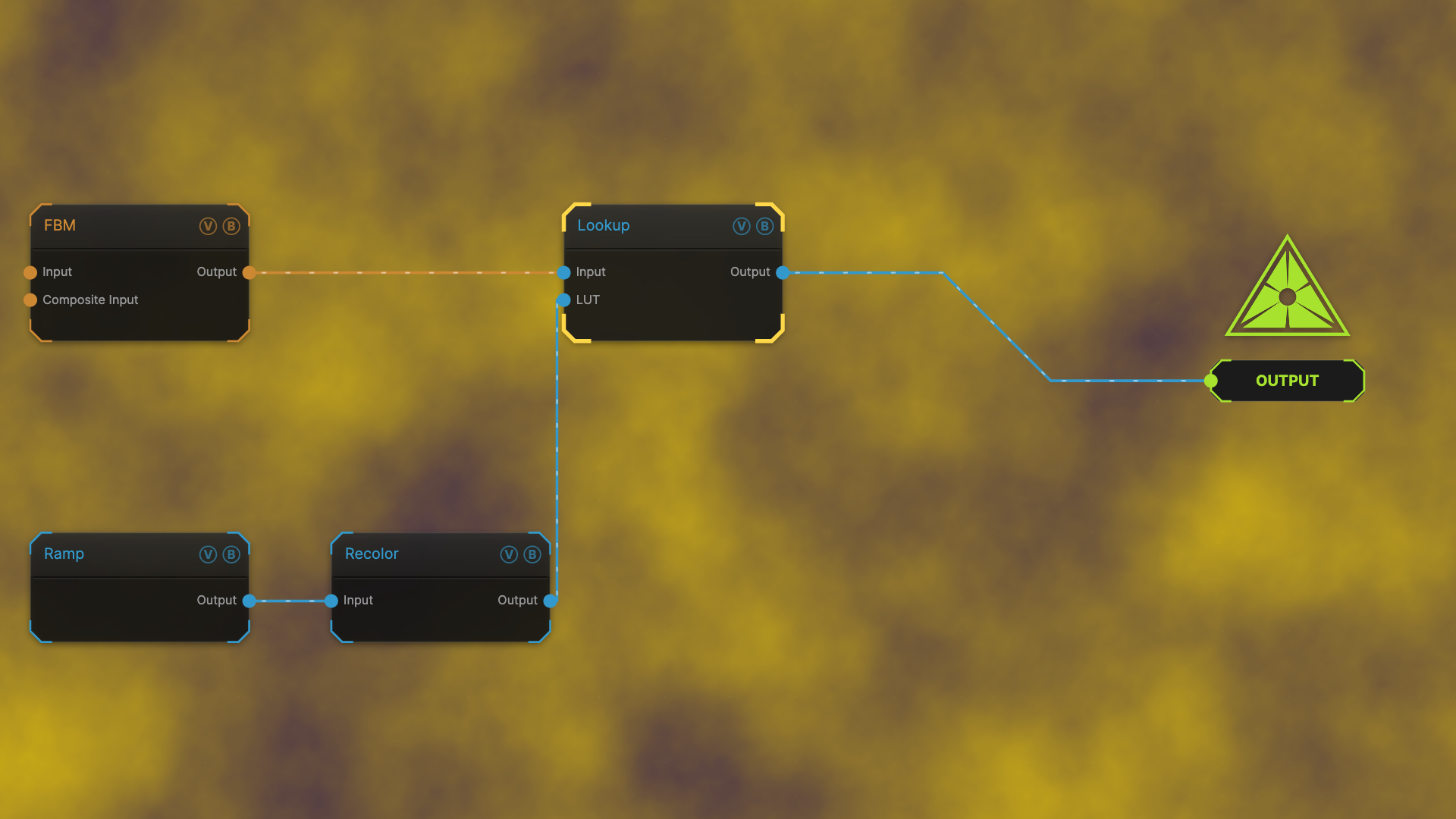
The image on the right is the example patch itself — drag and drop it onto the app (or load it with File → Load) to open the full graph.
Inputs and outputs
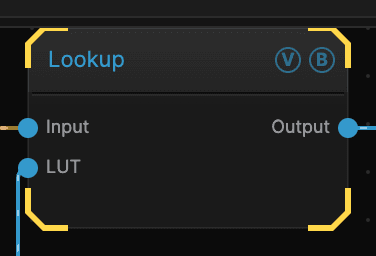
| Port | Type | Purpose |
|---|---|---|
| Input | Texture | The picture to recolour |
| LUT | Texture | The colour table. Ignored when a CUBE file is loaded |
| Output | Texture | The result |
Parameters
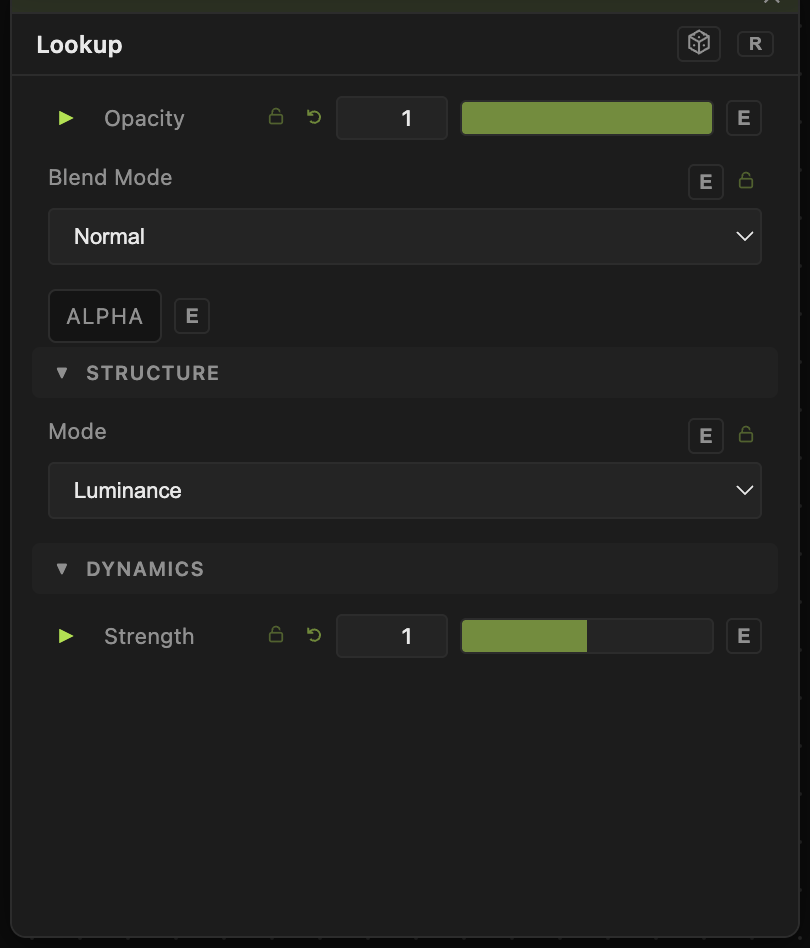
Opacity, Blend Mode, ALPHA — the standard operator header, on every operator. See Parameters and Controls.
- Mode (default Luminance) — how the table is read. Luminance uses the brightness of each pixel to pick a colour from a strip, which is the gradient-map look. Per Channel reads each of red, green, and blue separately. LUT Image and HALD Image read a proper grading table stored as a picture. CUBE File loads one from a file.
- CUBE File — the grading file to load. Only shown in CUBE mode; the file travels with the saved patch.
- Flip LUT Y (default off) — lookup images come in two vertical conventions. If the grade works but the greens look wrong, turn this on.
- Strength (0–2, default 1) — how much of the remap is applied. 0 leaves the picture alone; above 1 pushes past the table for a harder grade.
Troubleshooting
Nothing changed — in Luminance mode a black-to-white strip is the same as no change at all. Use a strip with real colour in it.
The picture came through untouched in LUT Image mode — the picture on the LUT input is not a valid table. Sizes that do not fit a known layout pass straight through rather than producing garbage.
The colours look wrong in the greens — turn on Flip LUT Y.