Load Image
Brings a still image into a patch from a file you drop in or a web address.
The Load Image node brings a picture in from outside. Drop a file onto the parameter panel, or paste a web address, and the image becomes a texture you can wire anywhere.
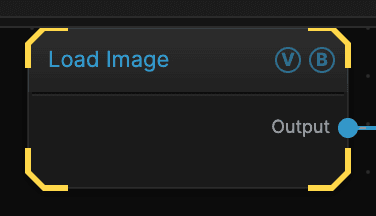
- No inputs; one picture out
- Takes a dropped file or an
http/httpsaddress - Position, scale, rotate, and mirror it without another operator
- Found under Texture in the add-operator list
Inputs and outputs
| Port | Type | Purpose |
|---|---|---|
| Output | Texture | The loaded picture, fitted to the frame |
Loading a picture
- Add a Load Image node and select it.
- Drop an image file onto the Image slot in the parameter panel, or click it to browse.
- To load from the web instead, paste the address into Image URL.
The picture is stored in the patch, so a saved patch opens with the same image on another machine.
Parameters
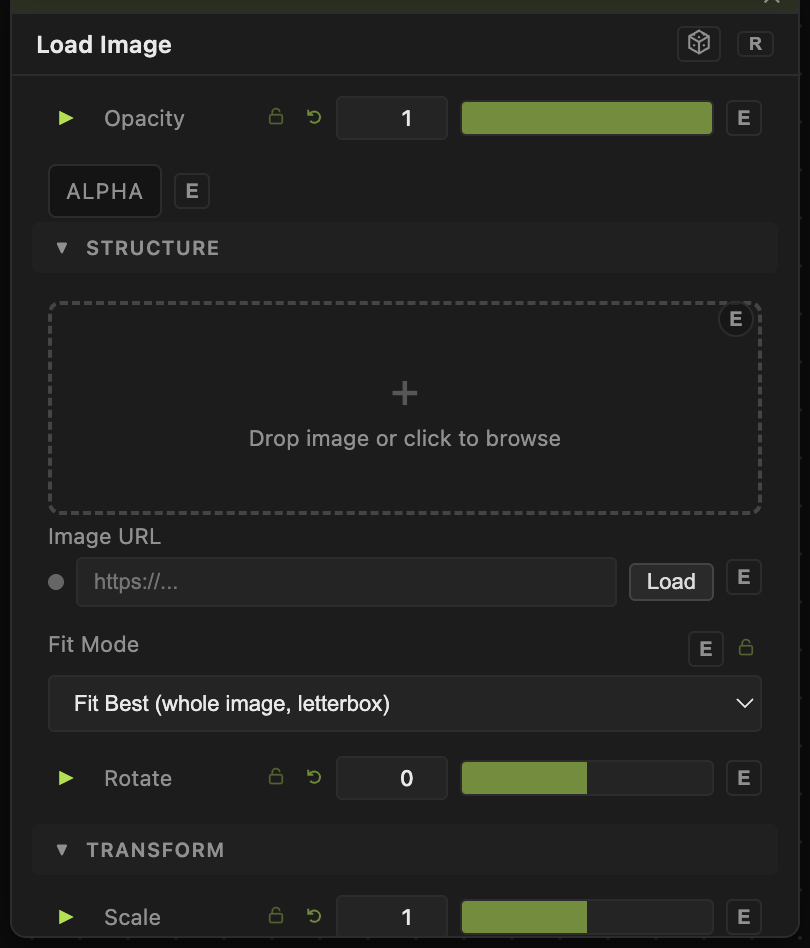
Opacity, Blend Mode, ALPHA — the standard operator header, on every operator. See Parameters and Controls.
- Image — the file. Drop one in or click to browse.
- Image URL — load from a web address instead of a file.
- Fit Mode — how a picture whose shape does not match the frame is handled: fitted inside, filled to cover, or stretched.
- Scale (0.1–10, default 1) — zoom in or out.
- Stretch X and Stretch Y (0.1–5, default 1) — squash or stretch one axis.
- Translate X and Translate Y (−1 to 1, default 0) — move the picture around.
- Rotate (−180 to 180, default 0) — turn it.
- Flip X and Flip Y (default off) — flip it.
- Mirror — None (default), Horizontal, Vertical, or Both: folds one half of the picture onto the other.
Troubleshooting
Nothing appears — no file is loaded yet, or the web address could not be reached. A web address must start with http or https.
The picture is squashed — change Fit Mode. Stretching to fill is only right when the picture already matches the frame shape.
Bars appear at the sides — the fitted mode keeps the picture's shape and leaves the rest empty. Use the filling mode to crop instead, or change the output size in the Output dialog.