Blend
Stacks two or more textures, each with its own blend mode and opacity.
The Blend node composites texture inputs as a stack. Input A is the base; every input above it blends down onto the ones below with its own mode and opacity.
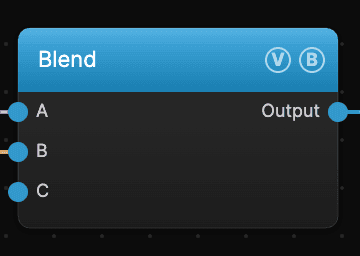
- Inputs grow as you wire them — A, B, C… — with one empty slot always waiting
- Ten blend modes, set per input, not per node
- Found in the node graph under Texture in the operators panel
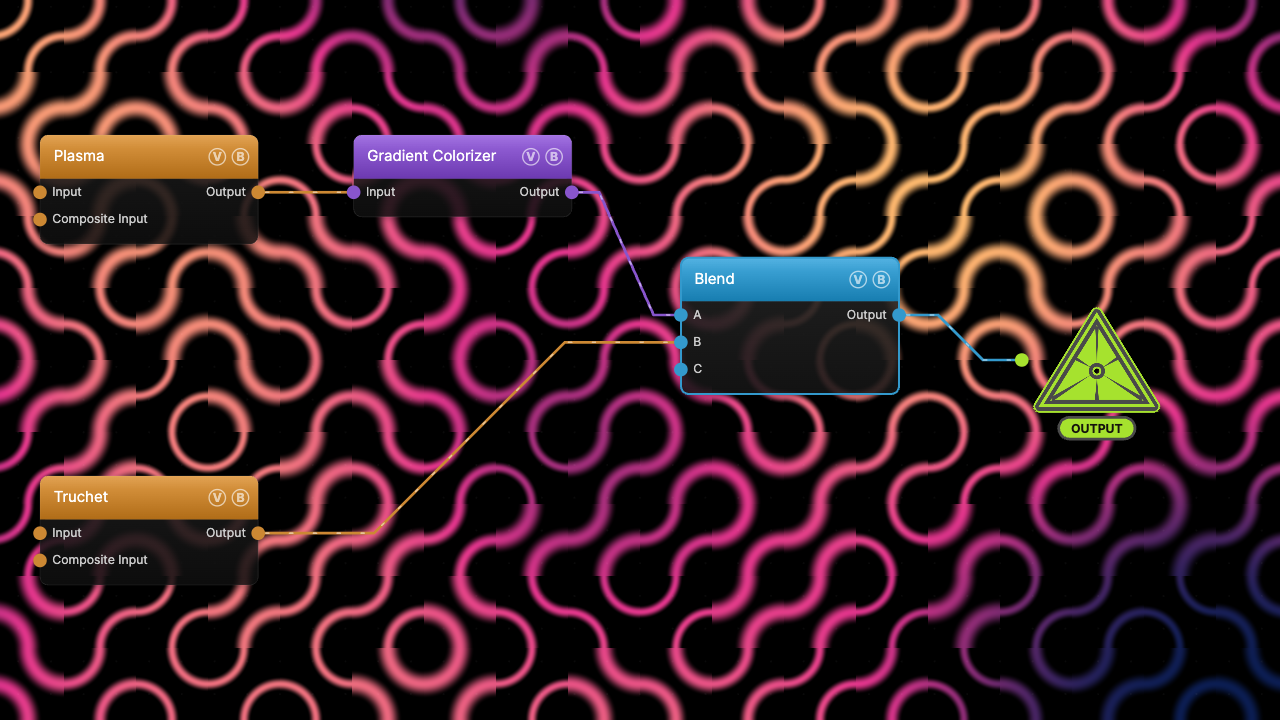
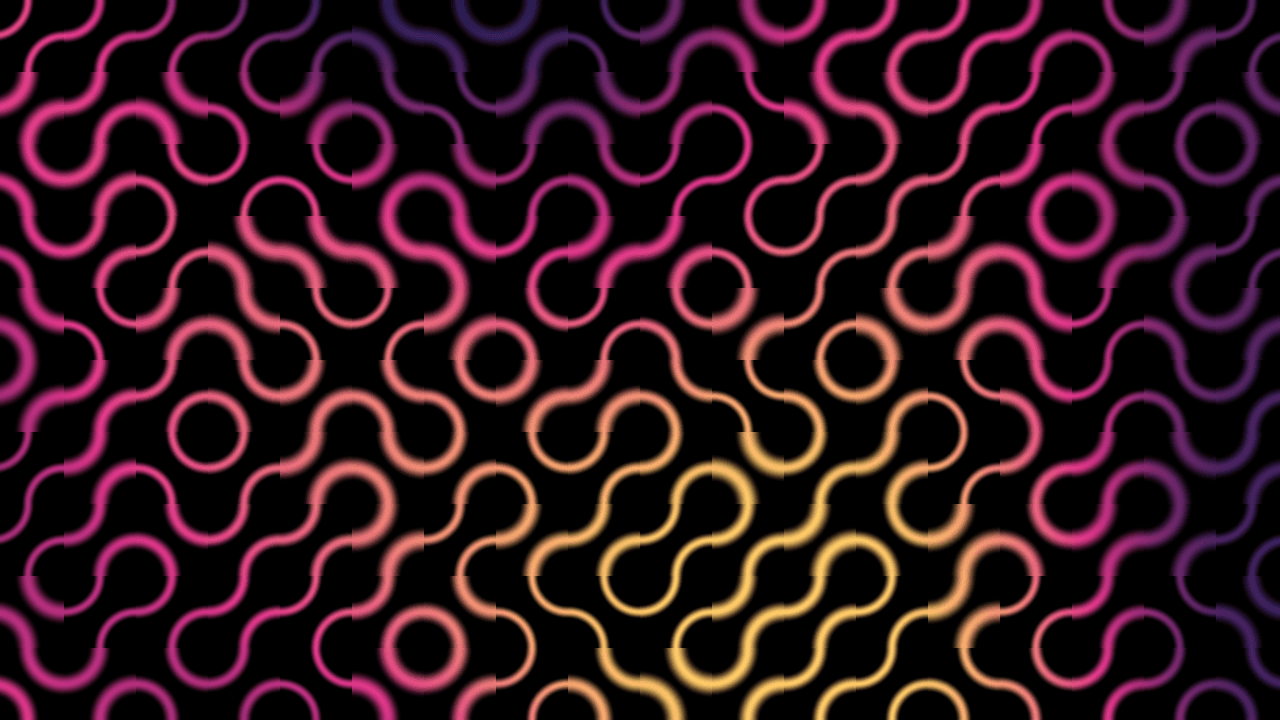
The image on the right is the example patch itself — drag and drop it onto the app (or load it with File → Load) to open the full graph. It multiplies a Truchet pattern into a colorized Plasma field.
Inputs and outputs
| Port | Type | Purpose |
|---|---|---|
| A | Texture | The base — the bottom of the stack. It has no blend controls because there is nothing beneath it. |
| B, C, … | Texture | Blending inputs. Each one composites over everything below it, using its own Blend mode and Opacity. |
| Output | Texture | The composited stack. |
The port list is dynamic. A fresh Blend node shows A and B; wire B and a C slot appears, and so on — there is always exactly one free slot at the bottom. Disconnecting a wire compacts the stack, and each input's mode and opacity follow its wire rather than staying with the port number.
With only one input connected, the node passes that texture straight through — the panel says so: Single input passes through. Add more to blend on top of A.
Parameters
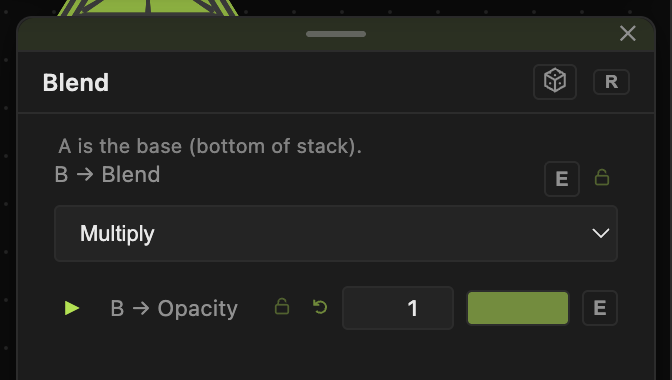
Controls appear per blending input, labelled with the port letter:
- B → Blend — the blend mode for that input (default Alpha).
- B → Opacity (0–1, default 1) — how much of the blended result is mixed in. At 0 the input is invisible; at 1 it is applied at full strength.
Both have a per-parameter animation bar, so either can be animated, audio-driven, or MIDI-mapped — see Parameters and Controls.
Blend modes
- Alpha — normal compositing: the input replaces what is below it, gated by its alpha and Opacity.
- Add — sums the two, clamped at white. Brightens.
- Multiply — multiplies the two. Darkens; white in the input leaves the base untouched.
- Screen — inverse multiply. Brightens; black in the input leaves the base untouched.
- Subtract — base minus input, clamped at black.
- Difference — absolute difference. Hard-edged, high-contrast interference.
- Overlay — multiply in the dark half of the base, screen in the light half. Raises contrast.
- Lighten / Max — per-channel maximum. These two options are the same operation.
- Min — per-channel minimum (darken).
Alpha handling
Blending is alpha-aware: the mode is computed on straight RGB, then composited Porter-Duff "over" using the input's alpha multiplied by its Opacity. An input with soft alpha — for example a generator with its Alpha toggle on — merges into an opaque base without the dark fringe that a naive mix produces.
Examples
Pattern into color — colorize a noise generator with Gradient Colorizer, wire it to A, wire a geometric pattern to B, set B → Blend to Multiply and B → Opacity to 1. The pattern becomes a mask that carries the color field's palette.
Additive glow stack — several generators into B, C, D, all on Screen at low opacity. Nothing clips to white until the sum gets there.
Interference — two similar noise fields on Difference, one of them slowly offset with Transform. Motion appears as moiré rather than drift.
Troubleshooting
Output looks identical to one source — check that both wires actually land on the Blend node. With one input connected the node is a passthrough.
Multiply turns everything black — Multiply keeps only what both inputs have. A source that is mostly black leaves almost nothing; try Screen or Lighten instead.