Shadow / Glow
Makes a soft, coloured copy of one picture and lays it behind the other, as a drop shadow or a glow.
The Shadow / Glow node takes the silhouette of one picture, blurs and colours it, and puts it behind the other. A dark colour reads as a drop shadow; a bright colour reads as a glow.

- Two pictures in, one out
- One is the subject, the other is what the shadow falls on
- Colour, blur, spread, and offset all adjustable
- Found under Texture in the add-operator list

The image on the right is the example patch itself — drag and drop it onto the app (or load it with File → Load) to open the full graph.
Inputs and outputs
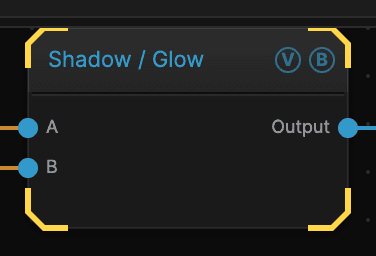
| Port | Type | Purpose |
|---|---|---|
| Input | Texture | The first picture — by default the one that casts |
| Input 2 | Texture | The second picture — by default the one the shadow falls on |
| Output | Texture | The result |
Parameters
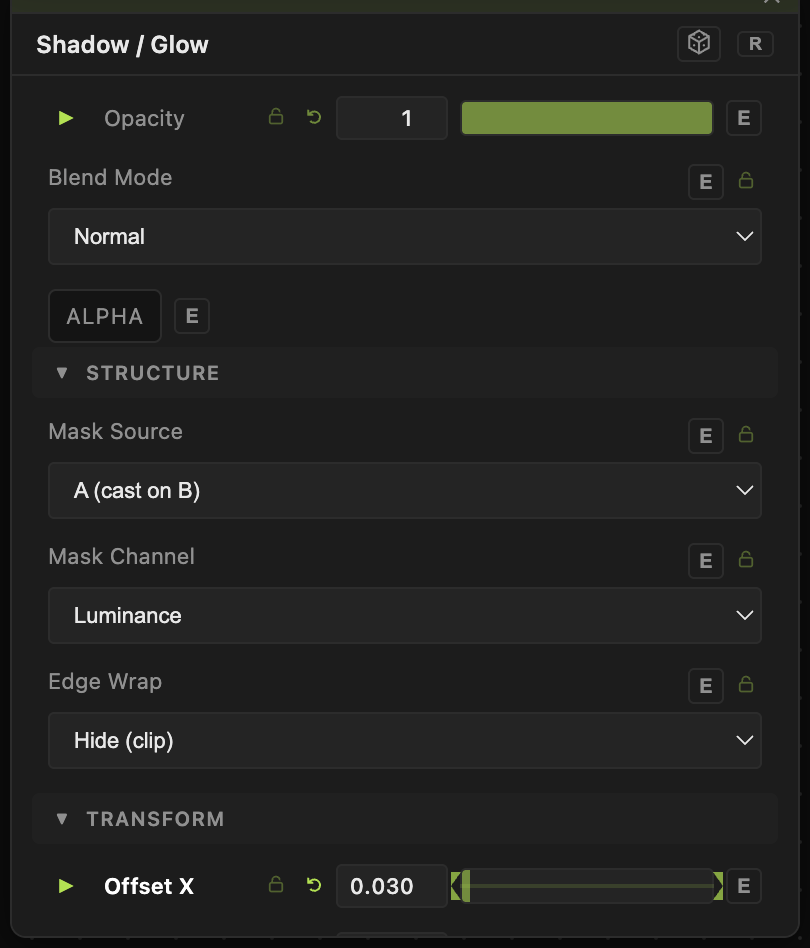
Opacity, Blend Mode, ALPHA — the standard operator header, on every operator. See Parameters and Controls.
- Mask Source (default A (cast on B)) — which input casts and which receives. Switch it rather than rewiring.
- Mask Channel (default brightness) — what part of the picture is read to find the silhouette.
- Threshold (0–1, default 0.5) — how bright a pixel must be to count as part of the shape.
- Shadow Color (default black) — pick a bright colour and it becomes a glow instead.
- Offset X (default 0.05) and Offset Y (default −0.05) — how far the shadow sits from the subject. Set both to 0 for a glow that sits evenly all round.
- Blur (0–32, default 4) — how soft the shadow is.
- Spread (0–4, default 0) — thickens the shape before blurring, for a denser glow.
- Edge Wrap — what happens where the shadow runs off the frame.
Troubleshooting
No shadow appears — Threshold may be above everything in the casting picture, so nothing counts as a shape. Lower it and watch the shadow appear.
The shadow covers the subject — check Mask Source; the two inputs are the wrong way round.
You want a glow, not a shadow — set a bright Shadow Color, set both offsets to 0, and raise Spread.