Texture
Shape Mask
Uses a shape, or a picture you supply, to choose between two pictures.
The Shape Mask node reveals one picture inside a shape and the other outside it. The shape can be one of the built-in ones, or the brightness of a third picture you wire in.
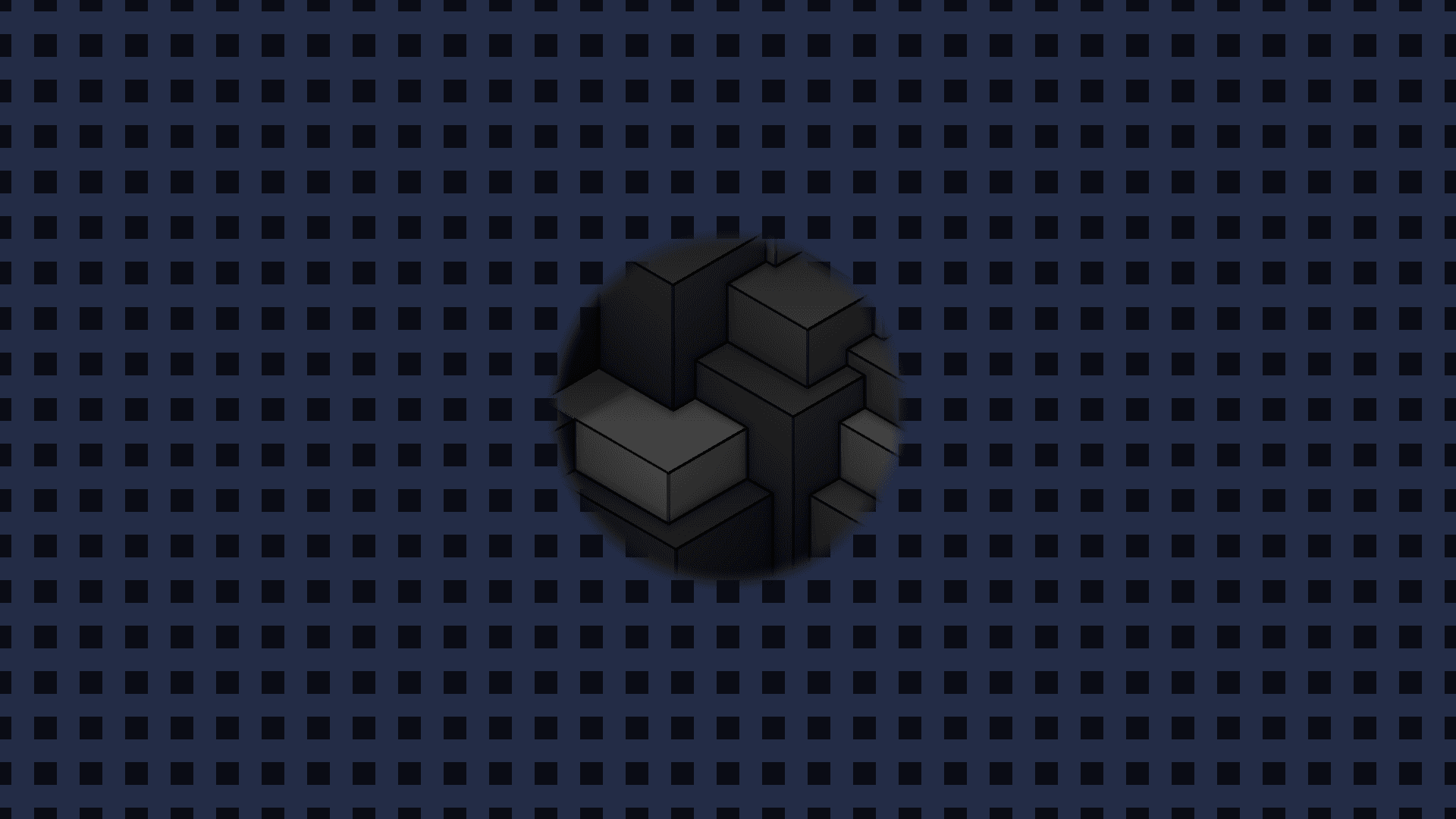
- Two pictures in, plus an optional mask picture; one out
- Built-in shapes, positionable and rotatable
- A wired Mask Image takes over from the built-in shape
- Found under Texture in the add-operator list
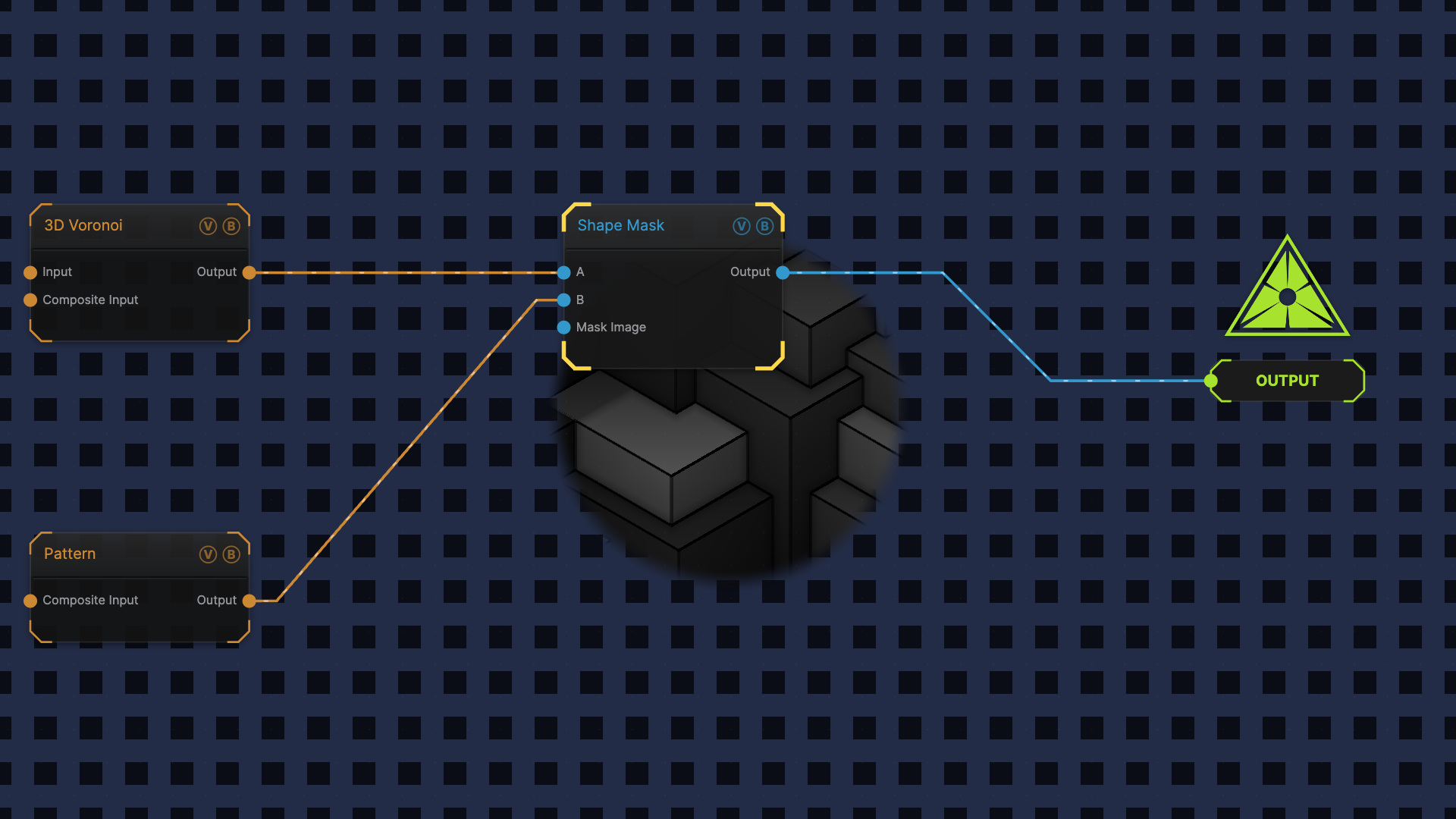
The image on the right is the example patch itself — drag and drop it onto the app (or load it with File → Load) to open the full graph.
Inputs and outputs
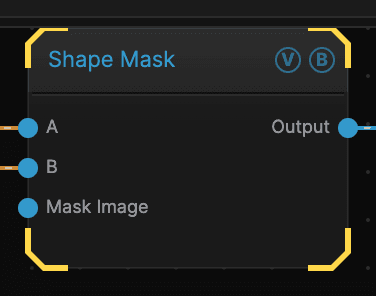
| Port | Type | Purpose |
|---|---|---|
| Input | Texture | Shown inside the shape |
| Input 2 | Texture | Shown outside the shape |
| Mask Image | Texture | Replaces the built-in shape with this picture's brightness |
| Output | Texture | The result |
Parameters
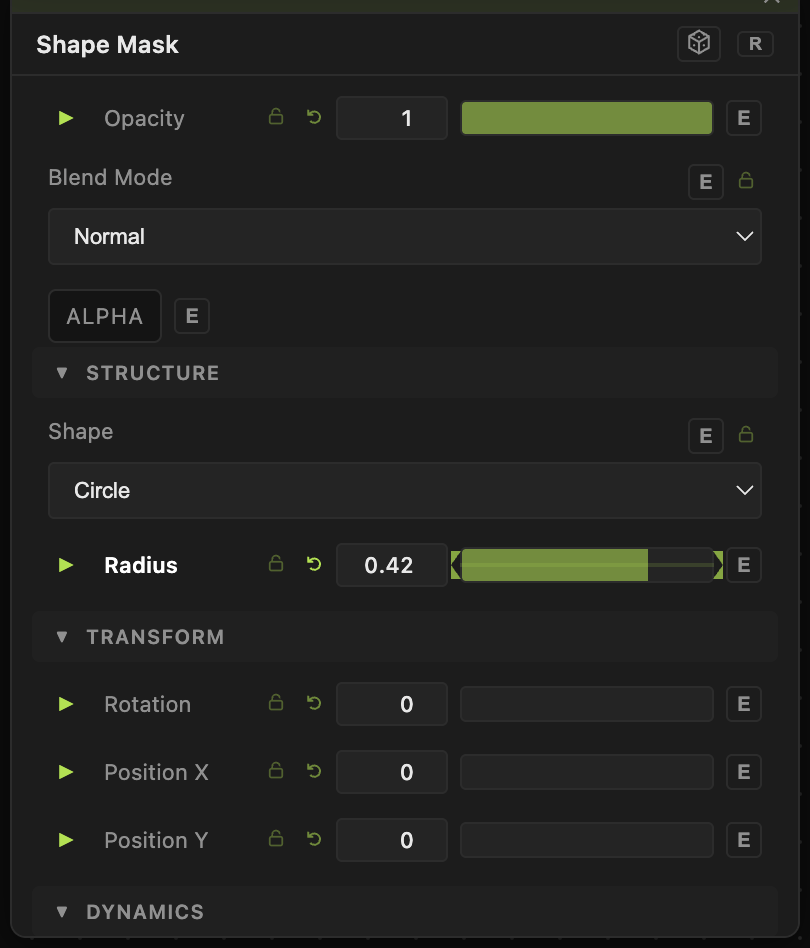
Opacity, Blend Mode, ALPHA — the standard operator header, on every operator. See Parameters and Controls.
- Shape (default Circle) — the built-in shape used as the stencil.
- Radius (0.01–1.5, default 0.5) — how big it is.
- Edge Smooth (0–0.5, default 0.01) — how soft the edge is. Raise it for a gentle vignette rather than a hard cut-out.
- Rotation (0–360, default 0) — turns the shape.
- Position X and Position Y (−1 to 1, default 0) — move it off centre.
- Invert (default off) — swaps inside for outside.
- Pulse Speed (0–10, default 0) — makes the shape breathe in and out on its own.
Troubleshooting
The shape controls stopped working — a picture is wired into Mask Image, which takes priority. Unwire it to go back to the built-in shape.
The edge is hard and jagged — raise Edge Smooth.