Node Graph
How to add, wire, preview, and organise operators in the graph.
The node graph is where you build a patch. Operators are nodes, wires carry data between them, and the Output node is what the viewport and every output stream show.
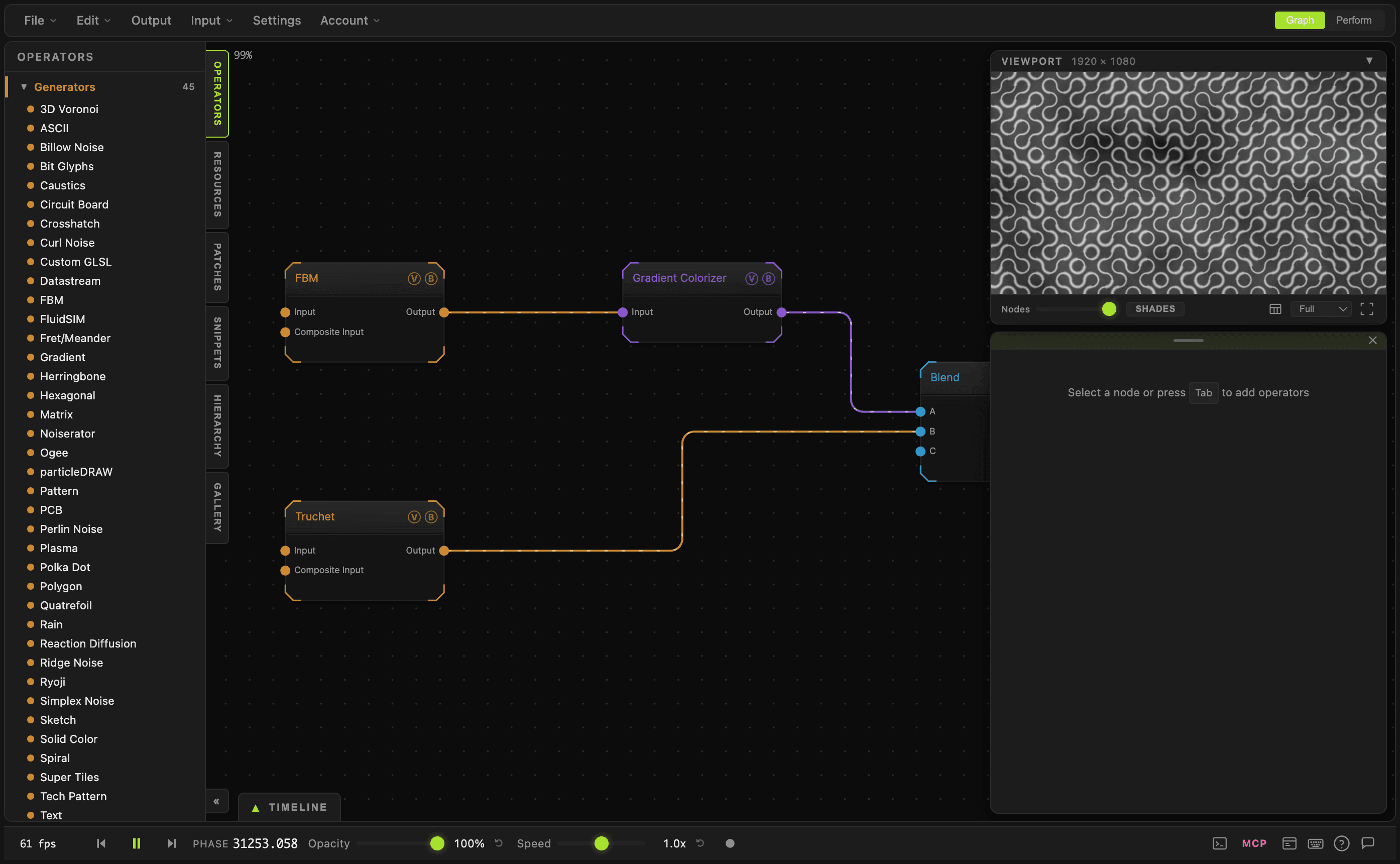
- Press
Tabto add an operator at the cursor - Drag from an output port to an input port to wire two nodes
- Press
Pon a node to preview it - Press
Zto frame every node at the current level
Adding operators
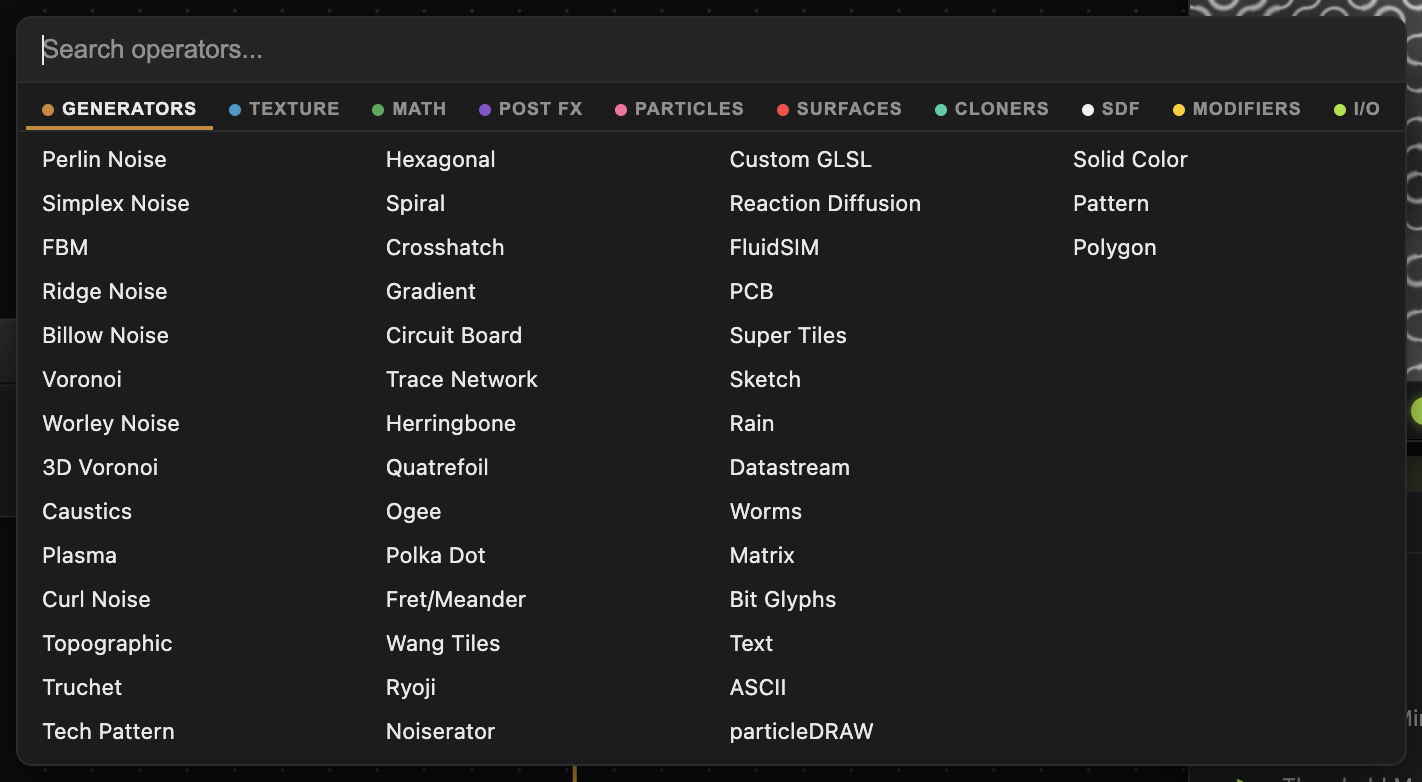
Press Tab over the canvas to open the search overlay at the cursor. With the field empty it browses: one tab per family — Generators, Texture, Post FX, Particles, Surfaces, Cloners, SDF, Modifiers, I/O. Type to filter across all of them.
In the overlay:
↓/↑— move the selectionEnter— place the operator and closeTab— place it, wire it to the operator you just placed, and reopen to the rightShift+Tab— place it below, unwired, and reopenEscape— close
Repeated Tab is how you build a chain quickly: each pick lands wired to the previous one.
The overlay also opens when you double-click empty canvas or drop a wire on empty canvas. A right-click on empty canvas opens the pie menu, which has the operator menu as one of its slices along with Fit Nodes to Screen, Quick Settings, and the Geometry Cache. Dropped from a wire, it lists only operators that can accept that connection.
You can also drag an operator from the Operators palette onto the canvas, or double-click it in the palette.
Wiring
Drag from a port to make a wire. Pressing a connected input and dragging picks the existing wire up and re-routes it; a plain click still just selects.
- Delete a wire — hold
Ctrland click it, or holdAltand drag a cut line from empty canvas across several wires N— disconnect every wire on the selection- Insert into a wire — hover a wire and click the bubble that appears, then pick an operator. Double-clicking an output port inserts the operator into the chain it feeds
O— wire the selected node straight to the Output node
Ports are typed and colour-coded, and a port only accepts a matching type. Texture ports carry images, Surface ports carry 3D geometry, and Modifier ports carry the values that drive parameters. Particle and cloner operators have their own emitter, effector, and renderer port types.
Previewing
The viewport shows the Output node by default. Press P on a selected node to show it in the preview panel, and T to show a live thumbnail on the node card. The two are independent switches. Several previewed nodes tile inside the viewport panel.
The eye button on each row of the Hierarchy panel does the same thing.
Base nodes preview like any other operator. Inline previews are on by default; turn previews off and the Base card holds a still of the last frame it drew, so you can see what is inside without paying to render it. On a large graph, turning previews off is the quickest way to get the canvas responsive again.
Moving around
- Pan — middle-drag, or hold
Spaceand left-drag - Zoom — scroll wheel, centred on the cursor
Z— frame every node at the current level- Keep scrolling past full zoom over a Base node to drop inside it; keep scrolling out to leave
The zoom percentage sits at the top left of the canvas.
Selecting and editing
- Left-click selects; Shift+click adds to the selection; left-drag on empty canvas draws a marquee
⌘Aselects everything at the current level,⌘⇧Adeselects⌘C/⌘Vcopy and paste — paste lands at the mouse⌘Dduplicates, and Alt+drag duplicates a node and drags the copiesDeleteremoves the selection⌘Z/⌘Yundo and redo
Right-click a node for Rename / recolor (F5), Replace operator with…, Copy, Duplicate, Disconnect, Collapse to Base, and Delete.
Organising a graph
Bases are subnetworks. Select some nodes and choose Collapse to Base to fold them into one node. Press i to go inside a Base, U to come back out, and use the breadcrumb bar to jump between levels. A Base can be saved to the Snippets panel and dragged into another patch.
Regions and comments annotate the graph. Press R to draw a region around the selection and C to drop a comment. Dragging a region moves every node inside it. Selecting either one shows its own controls in the parameter panel.
R is the gizmo's Rotate key. Use Shift+R to make a region instead.Troubleshooting
Nothing renders — check that something is wired into the Output node. The viewport hint reads Add Output node · P to preview when there is nothing to show.
Tab types into a field instead of opening search — the overlay is suppressed while a text field has focus, and while the pointer is over the parameter panel, where Tab steps between value fields. Move the cursor over the canvas first.
A node outputs nothing — check the port types match. A Float output wired into a Texture input will not carry an image.