Interface
The panels, menus, and transport controls of the Auragen workspace.
Auragen opens in Graph mode: a node graph in the middle, an operator palette on the left, a viewport and a parameter panel on the right, and a transport bar along the bottom.
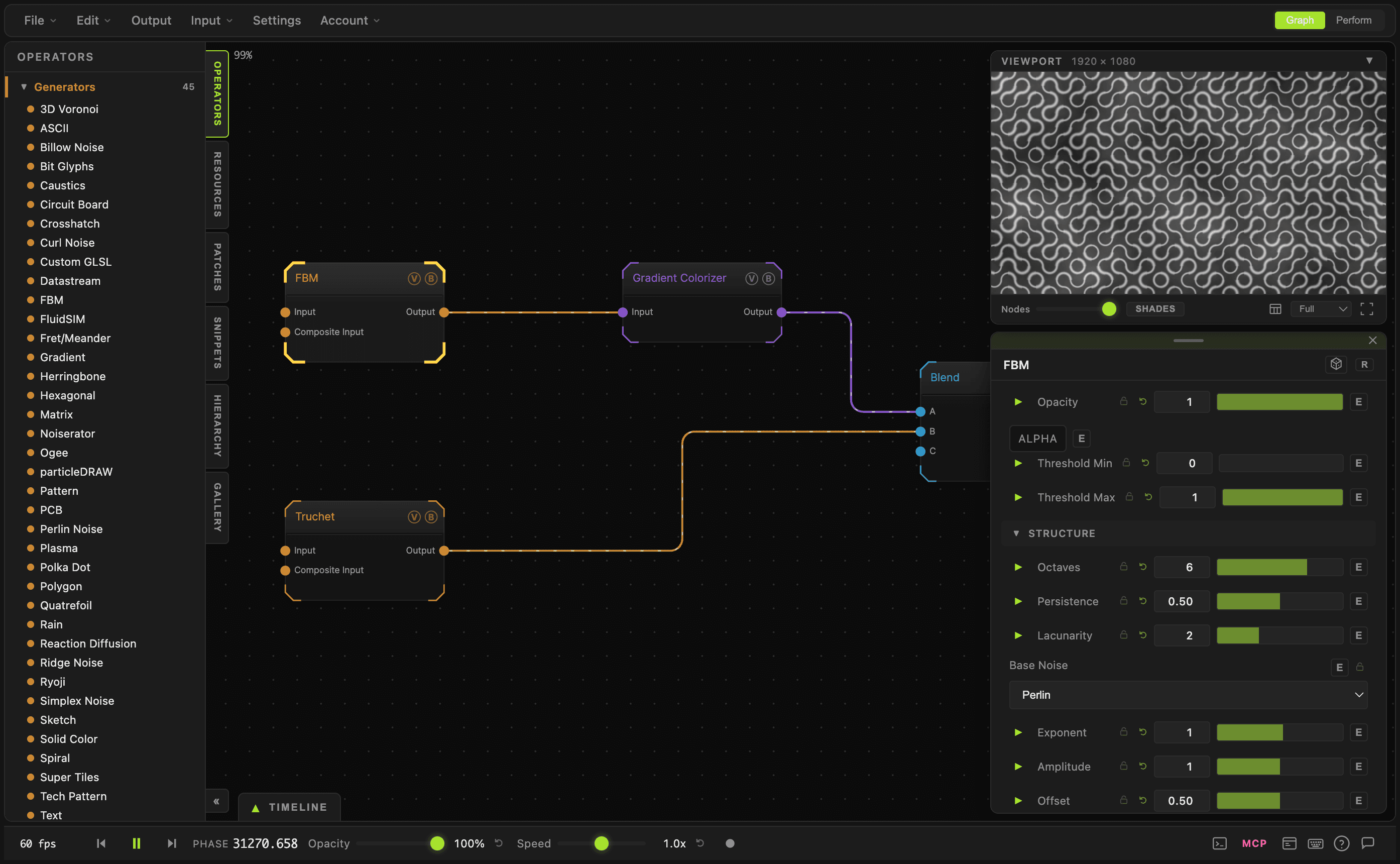
- Menu bar (top left) — File, Edit, Output, Input, Settings, Account
- Mode buttons (top right) — Graph and Perform
- Left dock — six tabs: Operators, Resources, Patches, Snippets, Hierarchy, Gallery
- Viewport and parameter panel — floating panels on the right; drag to move, drag an edge to resize
- Transport bar — playback, master opacity, animation speed, video recording
Menu bar
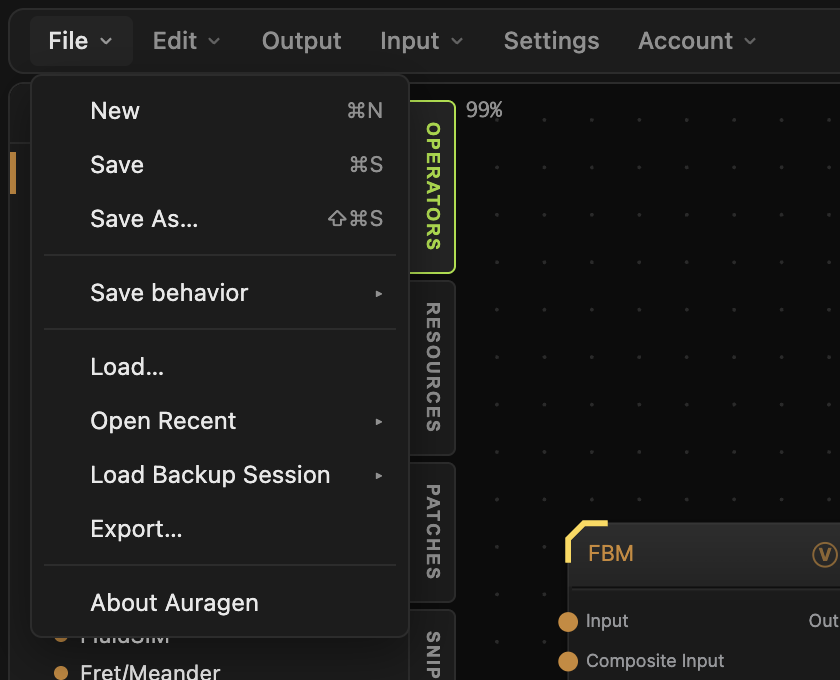
File — New (⌘N), Save (⌘S), Save As… (⇧⌘S), Save behavior, Load…, Open Recent, Load Backup Session, Export…, About Auragen.
Save behavior picks where Save writes: Save locally & to profile, Save locally only, or Save to profile only. The profile options need you to be signed in.
Edit — Undo (⌘Z) and Redo (⌘Y).
Output — opens the Output dialog: render output settings, plus the aetherDOME advanced output.
Input — Enable Audio Mapping and Enable MIDI Mapping. Each one arms a click-to-map mode: turn it on, then click a parameter to bind it.
Settings — General, Node Graph, 3D Behavior, Audio, MIDI, MCP, Folders, Profile. Render and output options live in the Output modal, and the grid controls live on the Theme node.
Account — your plan, links to My Creations, Account Settings, Subscription, and Security. Signed out, it offers Sign Up and Log In.
Left dock
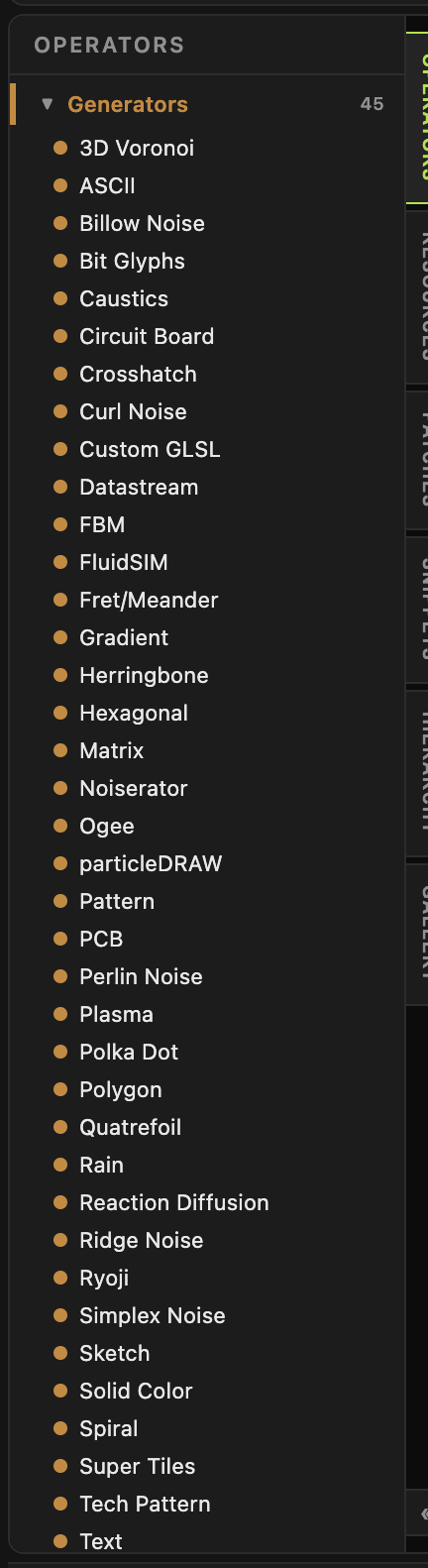
Six tabs run down the right edge of the dock. The « button at the bottom minimises the whole dock to a tab.
- Operators — every operator you can add, grouped by family. Drag one onto the canvas, or double-click it. See Node Graph.
- Resources — your asset library: images, HDRIs, models, vectors, video, and audio. Drag an asset onto the canvas and Auragen creates the matching input node.
- Patches — a folder of saved patch PNGs. Drag one onto the canvas to open or merge it.
- Snippets — saved clusters of nodes. Drag one onto the canvas to merge that subtree in.
- Hierarchy — an outline of the graph's wiring, rooted at the sinks. Click a row to select and glide to that node.
- Gallery — your own creations and public creations, with an Import button.
The number beside each operator family — Generators 45 — is a live count of the operators registered in that family.
Viewport
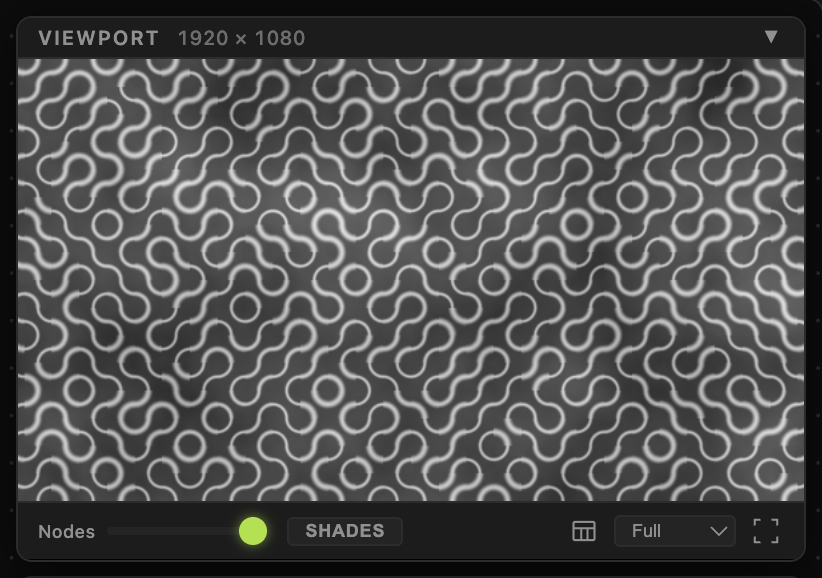
The Viewport panel shows the rendered output. The number in the header is the output resolution.
By default it shows the Output node. To add another node to the viewport, select it and press P. T shows a live thumbnail on the node card instead; the two are independent. Several nodes previewed at once tile inside the panel.
Footer controls, left to right:
- Nodes — node opacity in the graph (0.2–1). It fades node cards so you can see wires passing behind them. It does not change the render.
- Shades — collapses every node to its coloured title bar. Ports line up along the bar; hover one for its name.
- Test card — swaps the output for a built-in test card.
- Full — preview quality while editing: Full, Half, or Quarter. It does not affect exports.
- Fullscreen (
F9) — the viewport fills the window behind the graph.
Parameter panel
Select a node and its parameters appear in the lower right panel. Empty, it reads Select a node or press Tab to add operators. Press M to collapse or restore it. For what the controls do, see Parameters and Controls.
Transport bar

- fps — a rolling two-second average of rendered frames.
- Step back / Play-Pause / Step forward —
←,Space,→. A step moves the clock by 0.15 and pauses playback. - Phase — the global animation clock.
- Opacity — master opacity over the viewport. The button beside it resets to 100%.
- Speed — global animation speed, 0.1× to 5×, with 1× at the centre of the track.
- Record — the dot starts and stops video recording.
The icons at the bottom right are, in order: the integrated terminal, the MCP server toggle, the error log, the keyboard-shortcuts panel, ? to open this manual, and the chat panel. The terminal and MCP buttons are desktop-only.
Modes
Graph (F1) is the editor. Perform (F4) is the live surface: two patches loaded into zones A and B, a crossfader between them with a blend mode, an FX rack, and a patch browser. Both patches stay loaded so crossfades do not stutter.