Quantize
Snaps colours, and optionally positions, onto a grid of fixed steps.
The Quantize node rounds values to fixed steps. Applied to colour it gives flat bands like a poster print; applied to position it snaps the picture onto a grid.
- One picture in, one out
- Steps the colour, the position, or both
- Small steps stay subtle, large steps get graphic quickly
- Found under Texture in the add-operator list
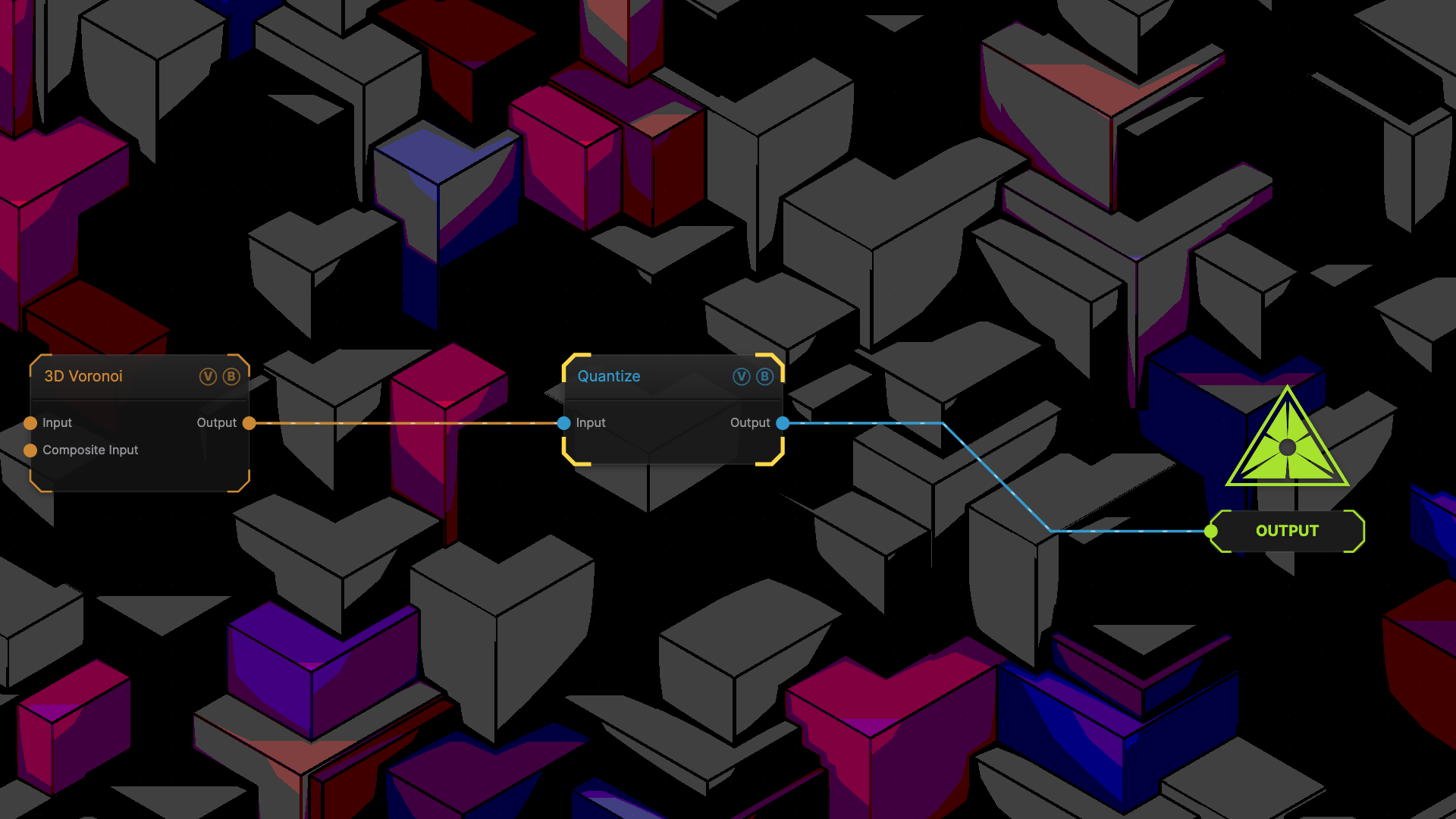
The image on the right is the example patch itself — drag and drop it onto the app (or load it with File → Load) to open the full graph.
Inputs and outputs
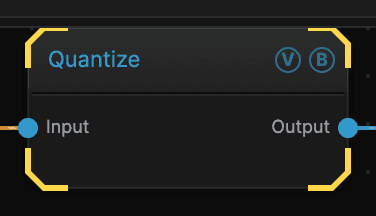
| Port | Type | Purpose |
|---|---|---|
| Input | Texture | The picture to work on |
| Output | Texture | The result |
Parameters
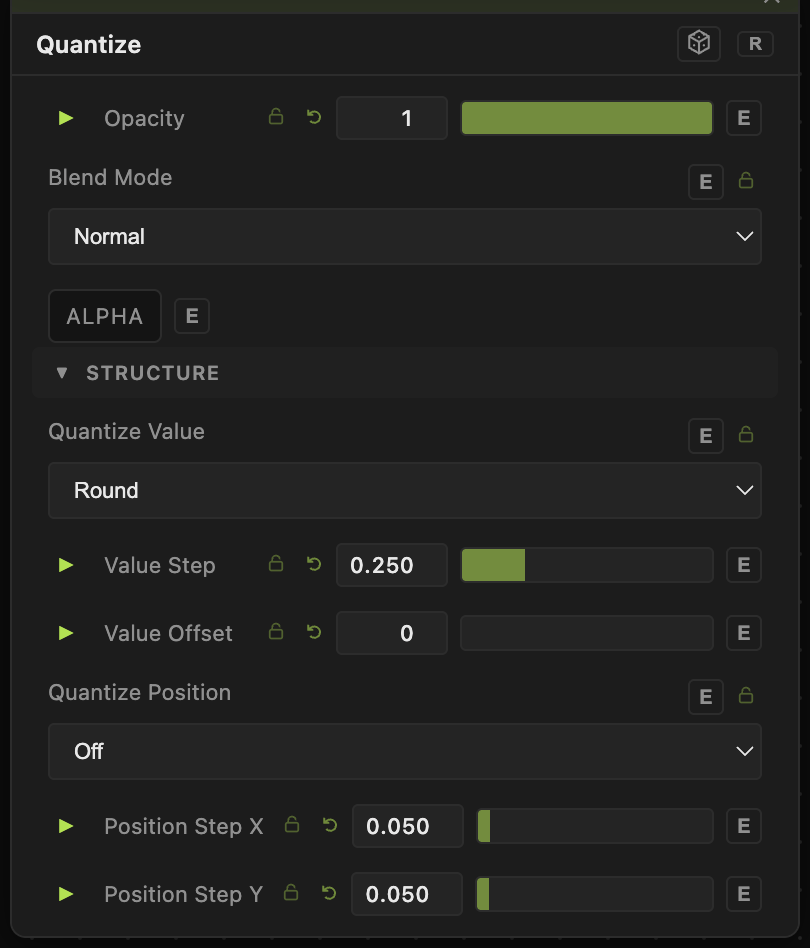
Opacity, Blend Mode, ALPHA — the standard operator header, on every operator. See Parameters and Controls.
- Quantize Value — how colour values are rounded, or Off to leave them alone.
- Value Step (0–1, default 0.25) — the size of each colour step. At 0.25 you get four bands.
- Value Offset (−1 to 1, default 0) — slides the bands up or down so they land somewhere else.
- Quantize Position (default Off) — turn this on to snap where the picture is sampled from, which breaks it into blocks.
- Position Step X and Position Step Y (0–1, default 0.05) — the size of those blocks across and down.
- Position Offset X and Position Offset Y (−1 to 1, default 0) — shift the block grid.
Troubleshooting
Nothing happened — both Quantize Value and Quantize Position default to doing very little on their own. Set Value Step larger, or switch Quantize Position on.
You wanted big square pixels — position stepping does that, but the Pixellate effect is built for it and is simpler to set up.