Texture
Load Video
Plays a video file or an image sequence, with speed, loop, and in and out points.
The Load Video node plays moving pictures. Drop in a video file or a numbered image sequence and it becomes a live texture, with its own speed and loop controls.
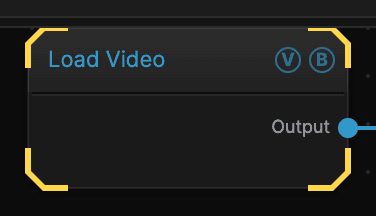
- No inputs; one picture out
- Plays a video file or an image sequence
- Set the section to play with In Point and Out Point
- Found under Texture in the add-operator list
There is no example patch on this page. A patch can only carry a video you supply, so start by adding the node and dropping in one of your own.
Inputs and outputs
| Port | Type | Purpose |
|---|---|---|
| Output | Texture | The current frame, fitted to the frame size |
Playing a video
- Add a Load Video node and select it.
- Drop a video file, or a numbered image sequence, onto the Video / Sequence slot.
- Set Speed and Loop Mode, then trim with In Point and Out Point.
Parameters
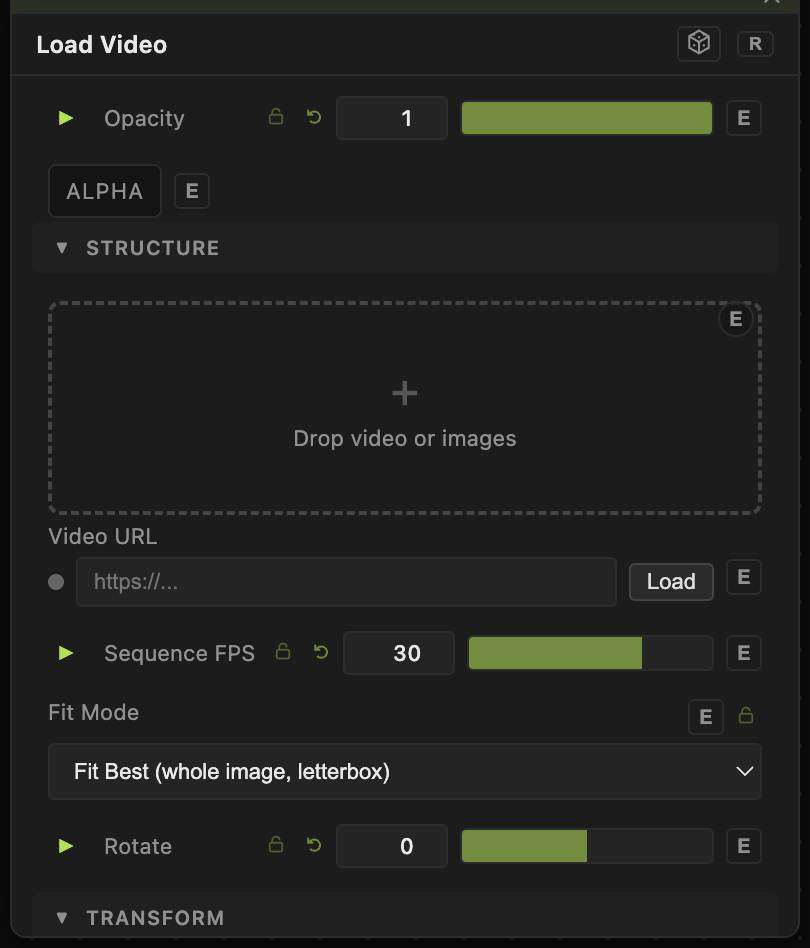
Opacity, Blend Mode, ALPHA — the standard operator header, on every operator. See Parameters and Controls.
Source
- Video / Sequence — the file, or a numbered set of images.
- Video URL — load from a web address instead.
- Sequence FPS (1–120, default 30) — how fast an image sequence plays. It has no effect on a video file, which carries its own rate.
- Frame Blend (default off) — fades between frames instead of cutting, which smooths a slow sequence.
Playback
- Speed (−4 to 4, default 1) — playback rate. Negative values play backwards; 0 freezes on the current frame.
- Loop Mode — Loop starts again at the end, Ping Pong runs back and forth, Play Once stops at the end, Hold Frame stays on the last frame.
- In Point and Out Point (0–1, default 0 and 1) — the section that plays, as a fraction of the whole.
- Retrigger (default off) — restarts from the in point.
Framing
- Fit Mode — how a video whose shape does not match the frame is handled.
- Scale (0.1–10, default 1), Stretch X and Stretch Y (0.1–5, default 1) — size and proportions.
- Translate X and Translate Y (−1 to 1, default 0) — position.
- Rotate (−180 to 180, default 0) — rotation.
- Flip X and Flip Y (default off) — mirror it.
Troubleshooting
The video does not play — check Speed is not 0, and that In Point is below Out Point.
It plays once and stops — Loop Mode is on Play Once or Hold Frame.
An image sequence runs too fast or too slow — set Sequence FPS. Unlike a video file, a sequence has no built-in rate.
Playback stutters — a large video decoded every frame is expensive. Try a smaller file, or a lower Sequence FPS for a sequence.