Texture
Pattern Mix
Uses a built-in geometric pattern to choose between two pictures.
The Pattern Mix node cuts between two pictures using a pattern it draws itself. Stripes, checks, dots, and hexagons all work as the stencil.
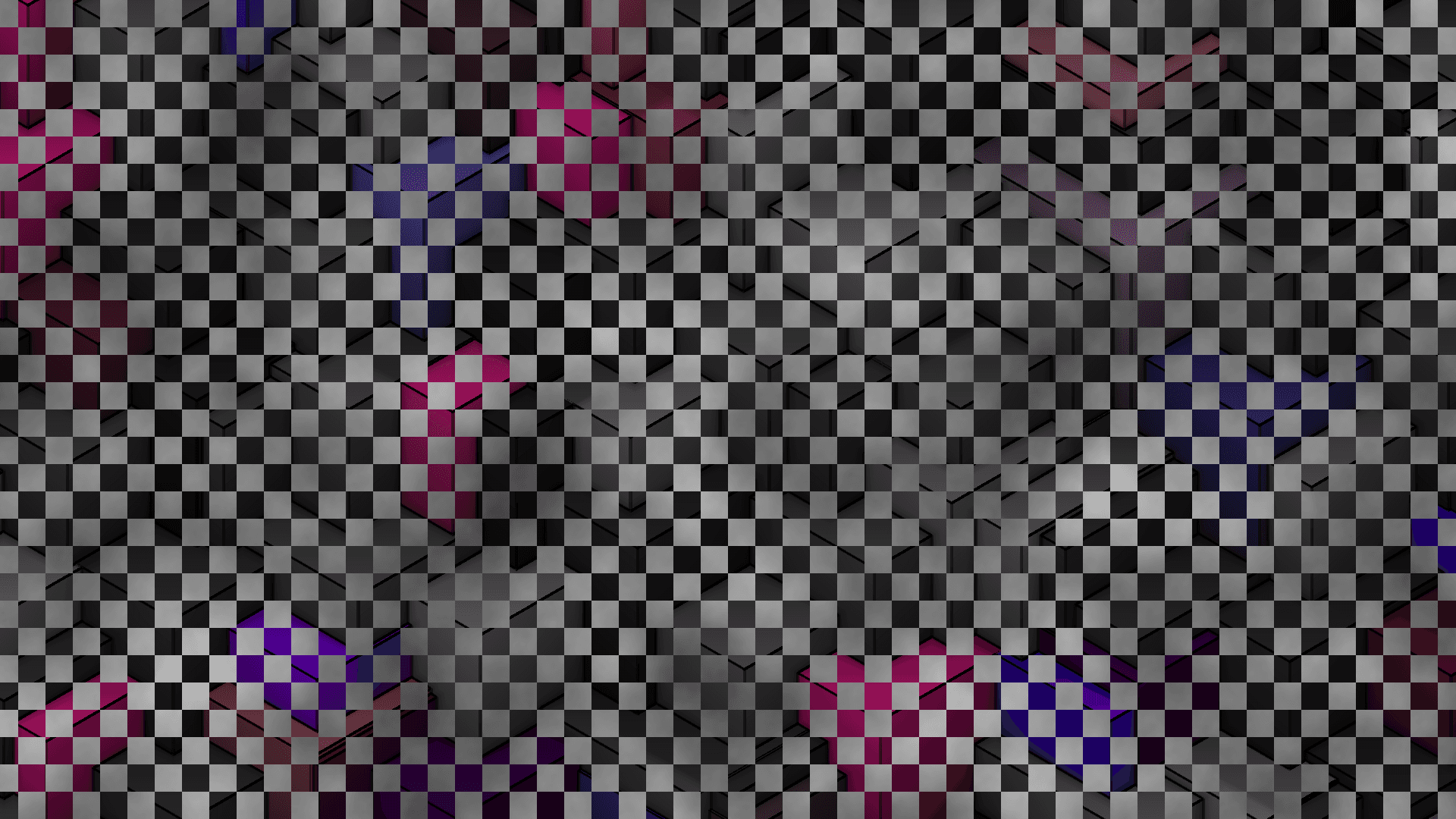
- Two pictures in, one out
- The pattern is built in — no third input needed
- Where the pattern is white you see one picture, where it is black the other
- Found under Texture in the add-operator list
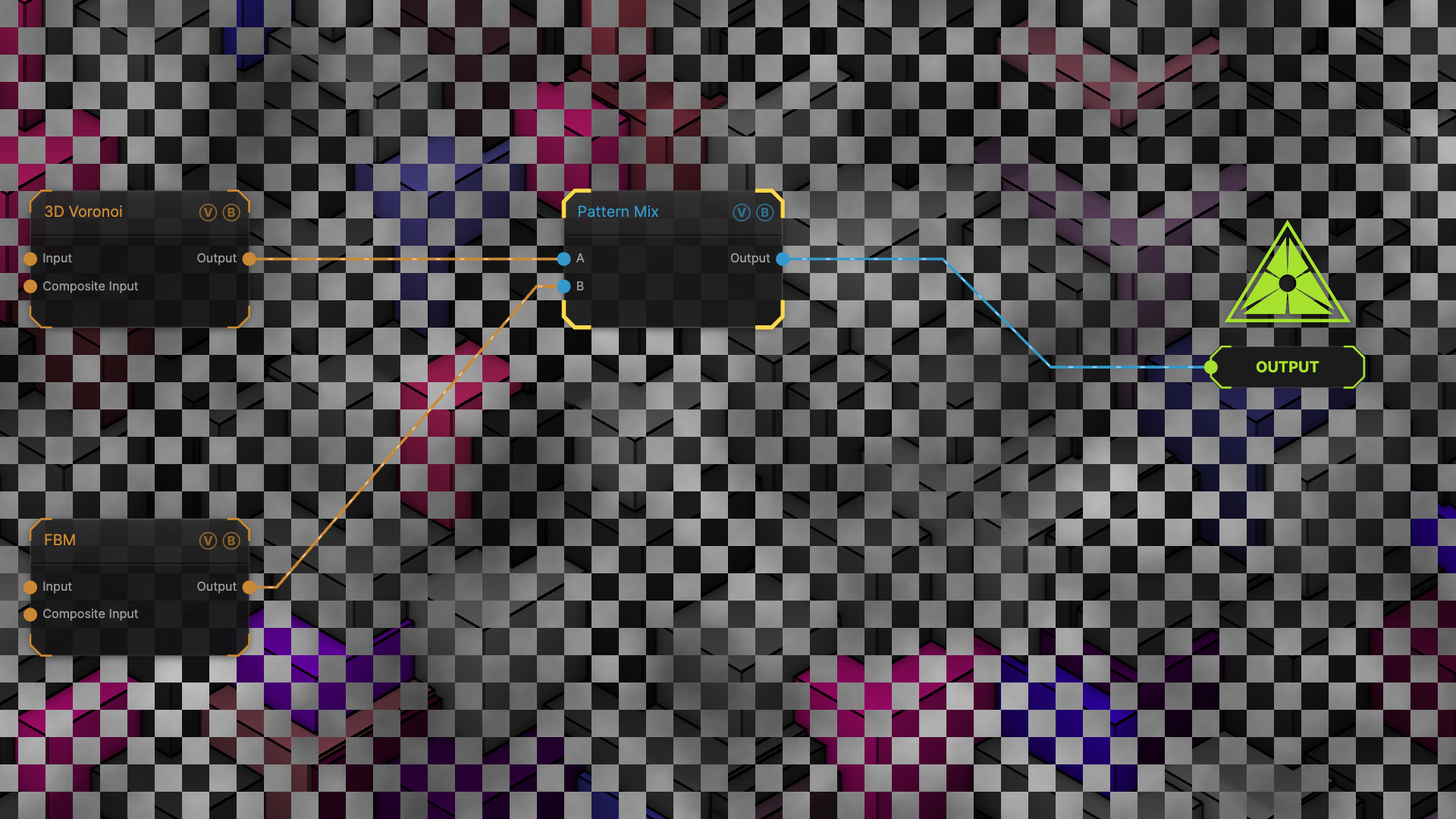
The image on the right is the example patch itself — drag and drop it onto the app (or load it with File → Load) to open the full graph.
Inputs and outputs
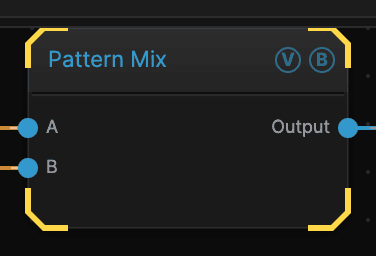
| Port | Type | Purpose |
|---|---|---|
| Input | Texture | Shown where the pattern is dark |
| Input 2 | Texture | Shown where the pattern is light |
| Output | Texture | The result |
Parameters
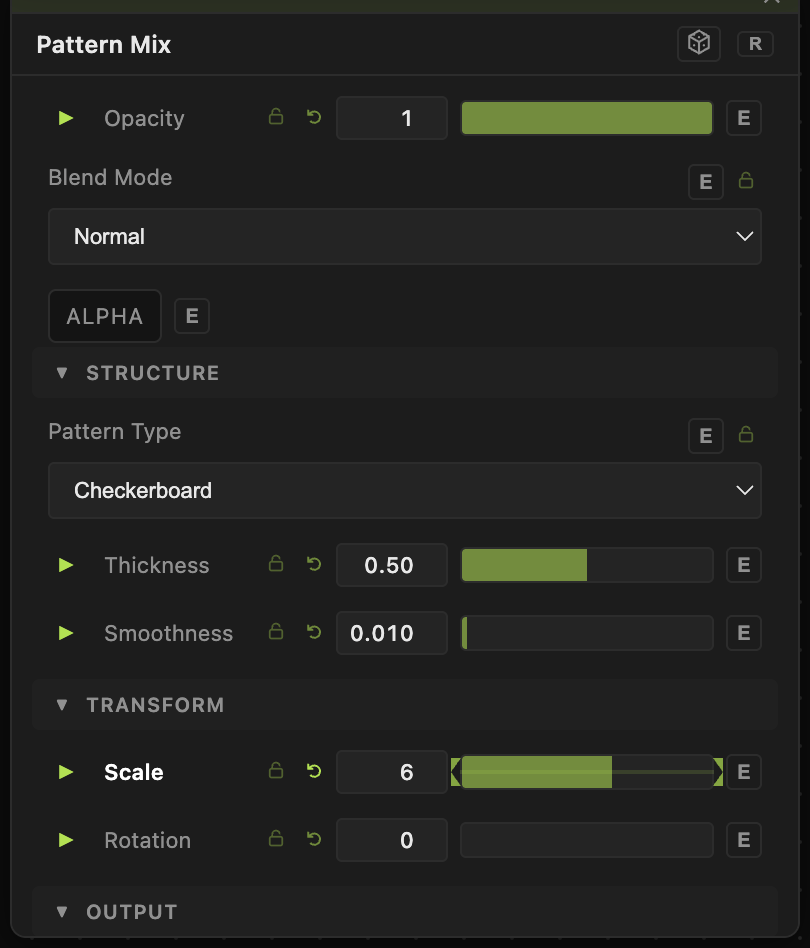
Opacity, Blend Mode, ALPHA — the standard operator header, on every operator. See Parameters and Controls.
- Pattern Type (default Stripes) — the stencil: stripes, checkerboard, rings, dots, grid, hexagons, radial lines, spiral, or a triangle grid.
- Scale (1–20, default 10) — how many repeats fit across the frame.
- Thickness (0–1, default 0.5) — the balance between the two pictures. At 0.5 each gets half.
- Smoothness (0–0.5, default 0.01) — softens the edge between them.
- Rotation (0–360, default 0) — turns the pattern.
- Invert Mask (default off) — swaps which picture goes where.
Troubleshooting
Only one picture shows — Thickness is at one end of its range, so the pattern is all one value. Bring it back toward 0.5.
The edges are jagged — raise Smoothness a little.