Blur
Softens a picture, evenly or along one direction.
The Blur node softens the input. Use it to take the hard edges off a mask, to make a glow, or to smooth noise before something downstream reads it.

- One picture in, one out
- Three kinds: smooth, boxy, or streaked along an angle
- Radius controls how far the softening reaches
- Found under Texture in the add-operator list
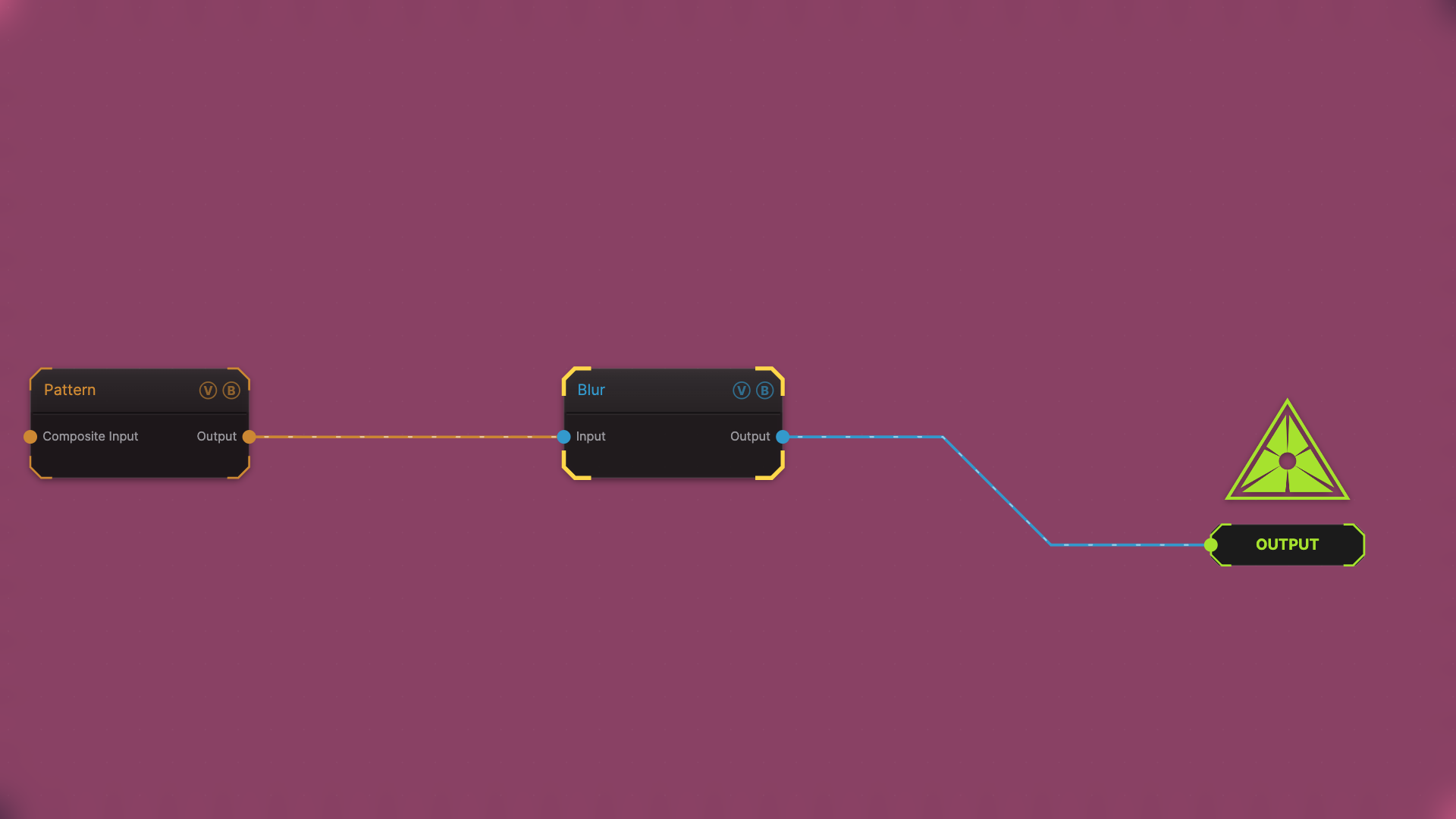
The image on the right is the example patch itself — drag and drop it onto the app (or load it with File → Load) to open the full graph.
Inputs and outputs
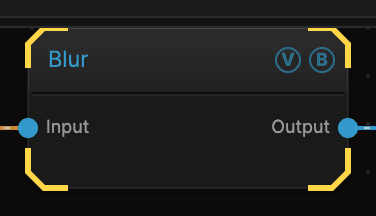
| Port | Type | Purpose |
|---|---|---|
| Input | Texture | The picture to work on |
| Output | Texture | The result |
Parameters
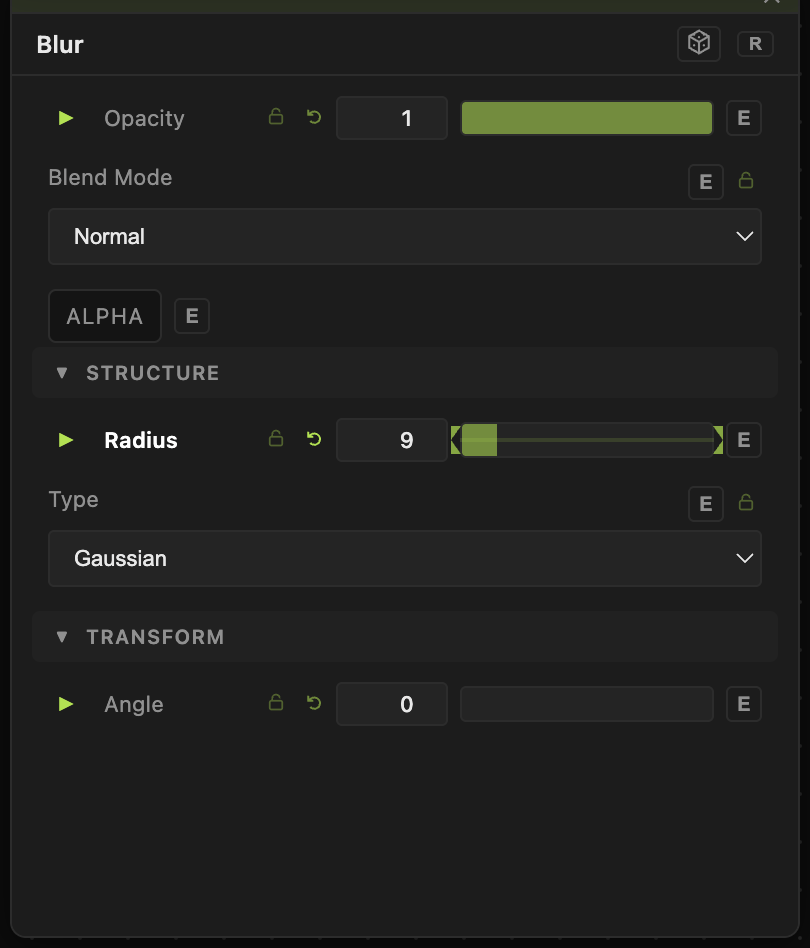
Opacity, Blend Mode, ALPHA — the standard operator header, on every operator. See Parameters and Controls.
- Radius (0–64, default 4) — how far the blur reaches, in pixels. 0 leaves the picture untouched.
- Type — Gaussian is the smooth, natural-looking one and the right default. Box is faster and slightly boxy. Directional smears along one angle only.
- Angle (−180 to 180, default 0) — the direction of a Directional blur.
Troubleshooting
Fine detail disappeared entirely — a large Radius on a small pattern erases it. Lower the radius, or make the pattern bigger before blurring.
Angle does nothing — it only applies to the Directional type.
The edges of the frame darken — a wide blur near the border pulls in from outside the picture. Keep the subject away from the very edge, or blur before you crop.