Perlin Noise
Classic gradient noise generator that produces smooth grayscale patterns, with domain warping via its texture input.
The Perlin Noise node generates smooth grayscale gradient noise. It is the most common starting point for organic textures, masks, and height fields, and its texture input turns it into a domain-warp effect.
- One texture output; two optional texture inputs (domain warp and composite)
- Transform controls (Seed, Scale, Offset, Rotation), levels (Threshold Min/Max), and animation Speed
- Found in the node graph under Generators in the add-node menu
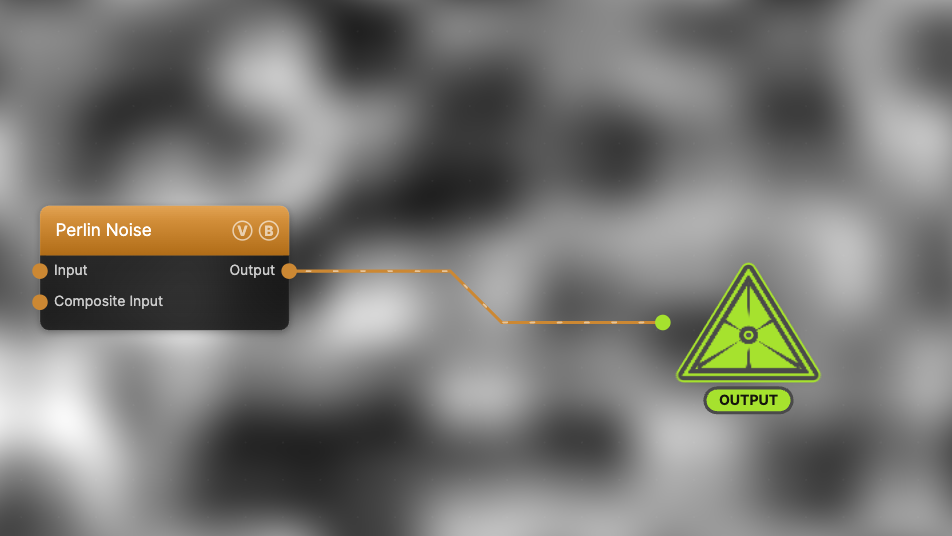
The image on the right is the example patch itself — drag and drop it onto the app (or load it with File → Load) to open the full graph.
Inputs and outputs
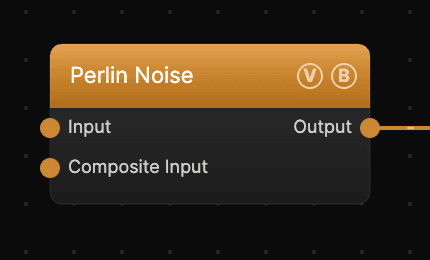
| Port | Type | Purpose |
|---|---|---|
| Displace | Texture | Domain warp: the red and green channels push the sample coordinates by Displace Amount |
| Composite Input | Texture | Composited under the output with Composite Mode and Composite Mix, which appear once the port is wired |
| Output | Texture | The grayscale noise field, normalized to 0–1 |
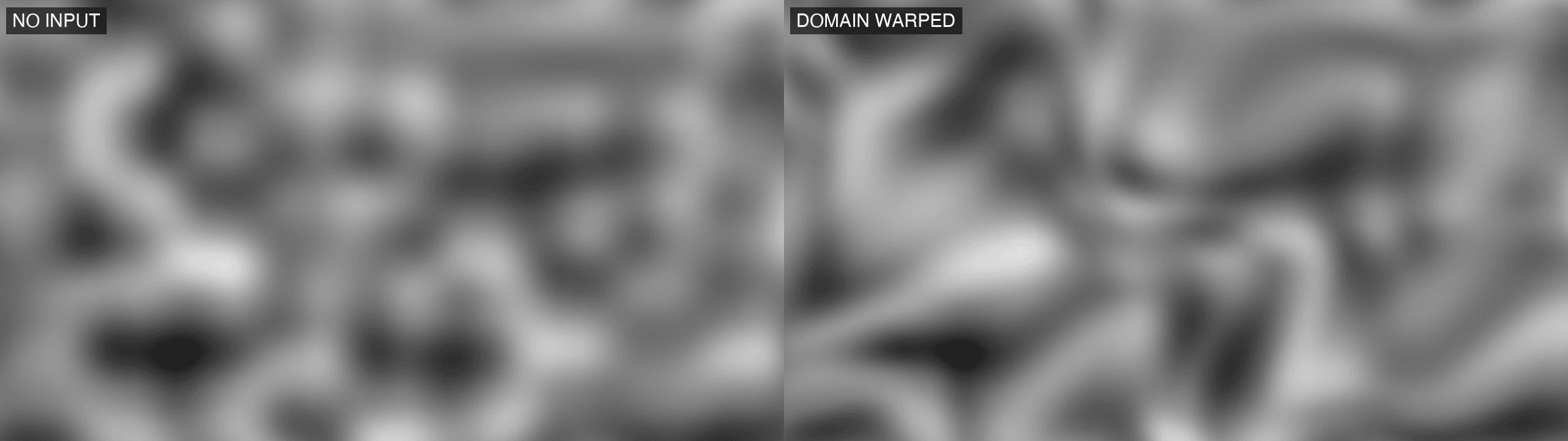
A texture into Input bends the pattern into swirls and folds; a black (or disconnected) input produces no warp, and the warp strength scales with the node's Scale parameter. Composite Input stacks another generator on top without a separate blend node.
Parameters
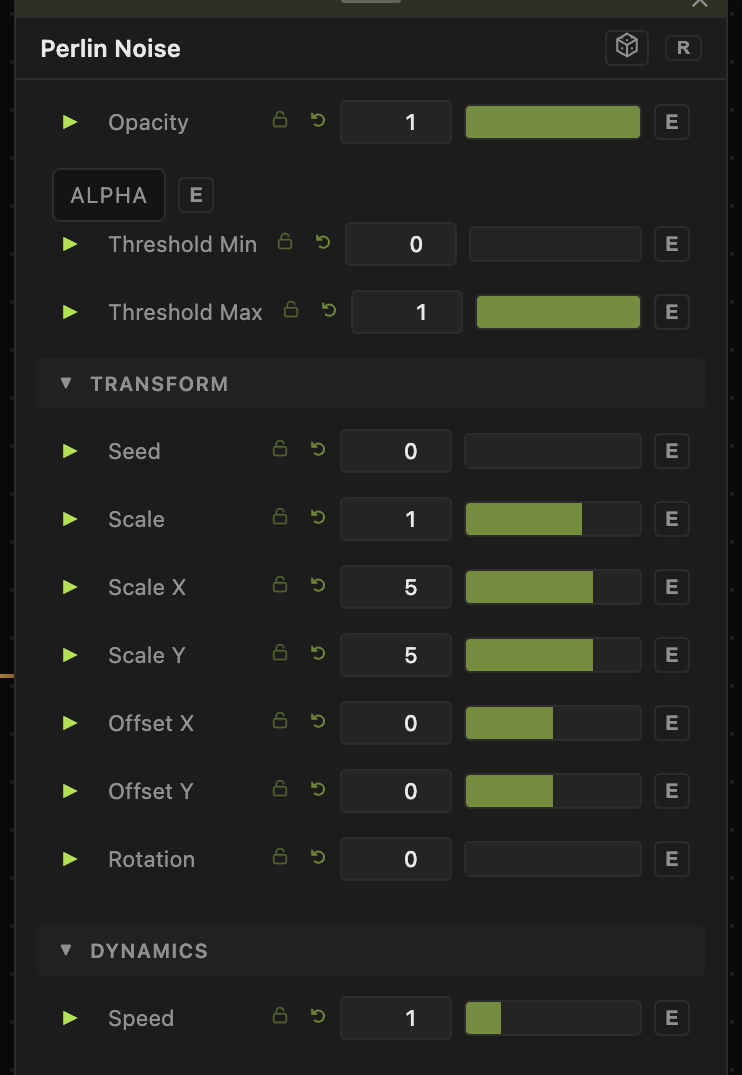
The noise is sampled from a seeded 3D Perlin field with time on the third axis, so animation evolves the pattern in place rather than scrolling it.
- Opacity (0–1, default 1) — output level; also the mix amount for the Composite Input.
- Blend Mode — how the Composite Input blends over the output (Normal, Add, Multiply, Screen, Overlay, Difference, Subtract, Lighten). The dropdown only appears once an input is wired.
- ALPHA — when on, sets the output alpha from luminance: black is transparent, white opaque, gray partial. Invert Alpha flips light and dark, for white-on-black sources.
- Threshold Min / Threshold Max (0–1) — remap the output levels: values below Min go to black, above Max to white, with the band between stretched to full range. Setting Min above Max inverts the result.
Transform
- Seed (0–99999) — selects a different noise field. Same seed always produces the same pattern.
- Scale (0.01–10, default 1) — uniform zoom that multiplies both axes. Scale X / Scale Y (0.01–50, default 5) set the per-axis frequency; the final frequency on each axis is Scale × Scale X (or Scale Y).
- Offset X / Offset Y (−20 to 20) — pan through the noise field.
- Rotation (0–360) — rotates the pattern around the center, in degrees.
Dynamics
- Speed (0–5, default 1) — playback rate multiplier for this node. It compounds with the global animation speed; 0 freezes the pattern.
Every slider has a per-parameter animation bar (the green triangle), so any of these can be animated, audio-driven, or MIDI-mapped — see Parameters and Controls.
Troubleshooting
The pattern doesn't move — the node's Speed is 0, or global animation is paused in the transport bar.
No Blend Mode dropdown — it is hidden until a texture is wired into one of the node's inputs.
A texture wired into Input does nothing — the warp is driven by the input's brightness, so a black or very dark texture produces no displacement. The warp amount also scales with Scale, so at very low Scale values the effect is subtle.
Output looks washed out — raise Threshold Min and lower Threshold Max to stretch the contrast.