ASCII
Converts any texture into a grid of characters picked by brightness, or lays out typed text, with per-cell scale warping and randomization.
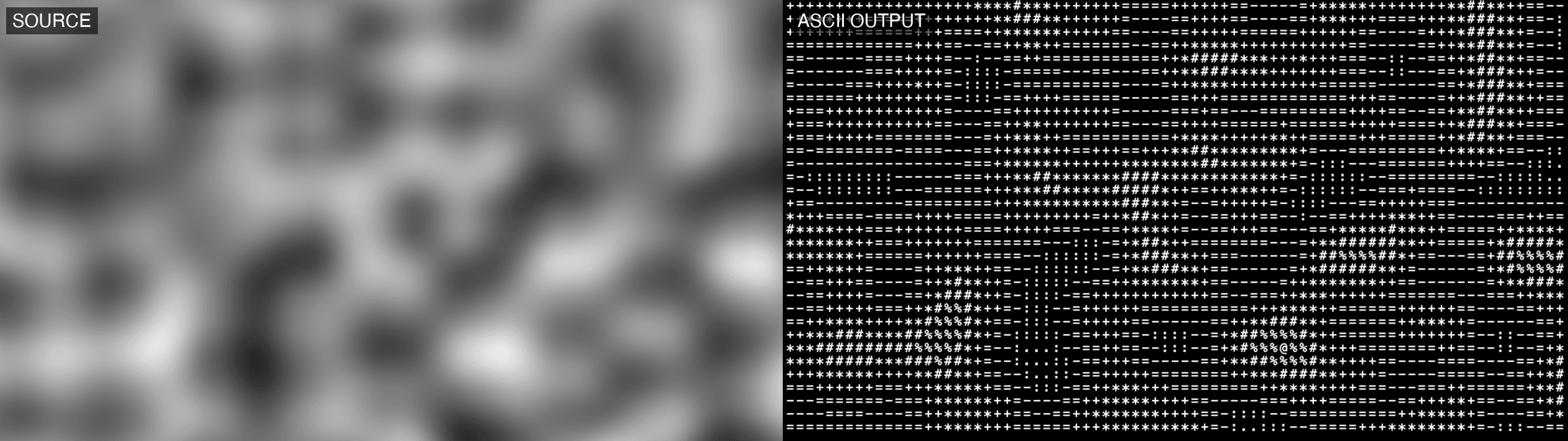
The ASCII node renders a character grid. In its default mode each cell samples the input texture's brightness and picks a character from a dark-to-light set — classic ASCII art from any generator, image, or video source.
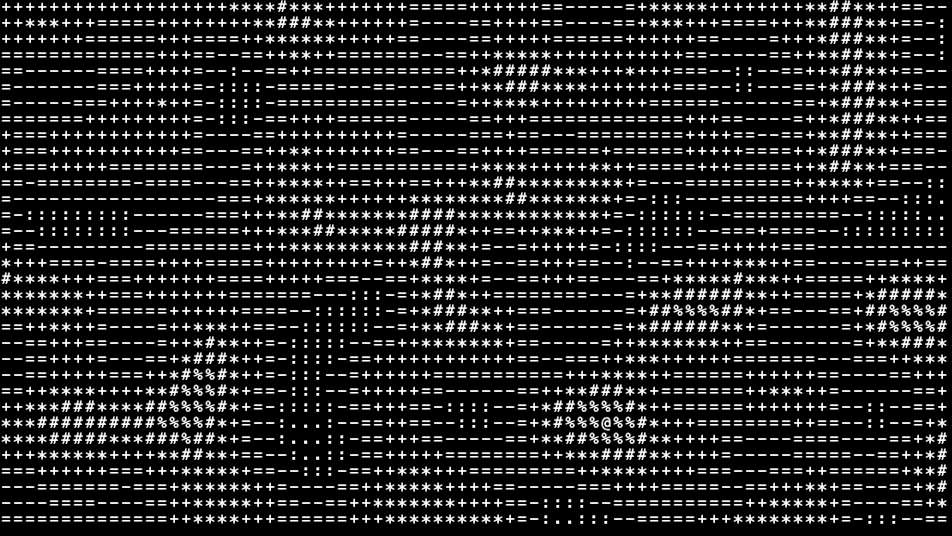
- One texture output; a brightness-source input and a composite input
- Two modes: brightness-to-charset conversion, or laying out typed text
- Found in the node graph under Generators in the add-node menu
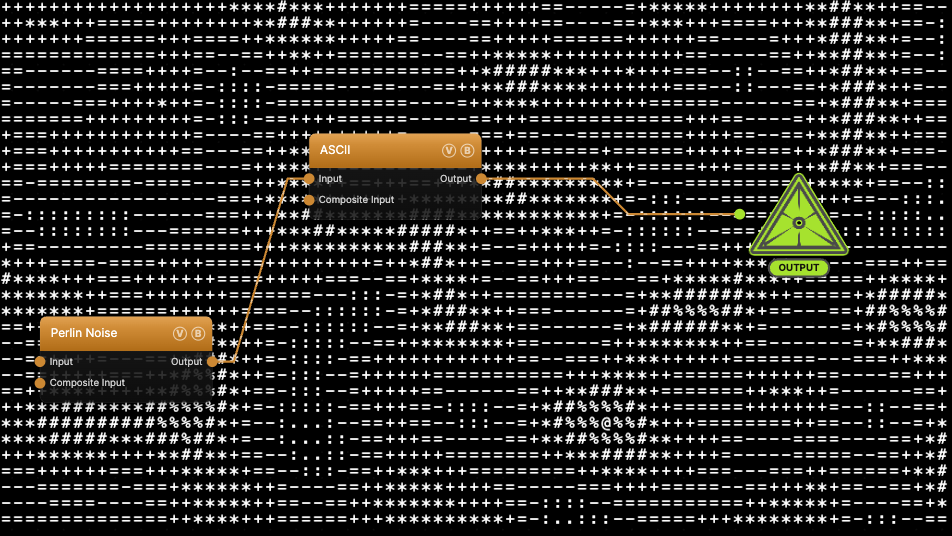
The image on the right is the example patch itself — drag and drop it onto the app (or load it with File → Load) to open the full graph. It feeds a frozen Perlin Noise into the Input port as the brightness source.
Inputs and outputs
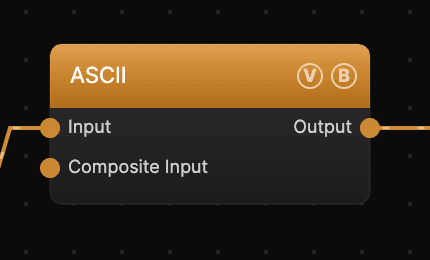
| Port | Type | Purpose |
|---|---|---|
| Input | Texture | Brightness source — each cell's luminance picks a character |
| Composite Input | Texture | Composited under the output with Composite Mode and Composite Mix, which appear once the port is wired |
| Output | Texture | The rendered character grid |
The Input texture also drives the scale-warp system (see Dark Scale / Light Scale) and, with Inherit Source Color on, per-cell color.
Parameters
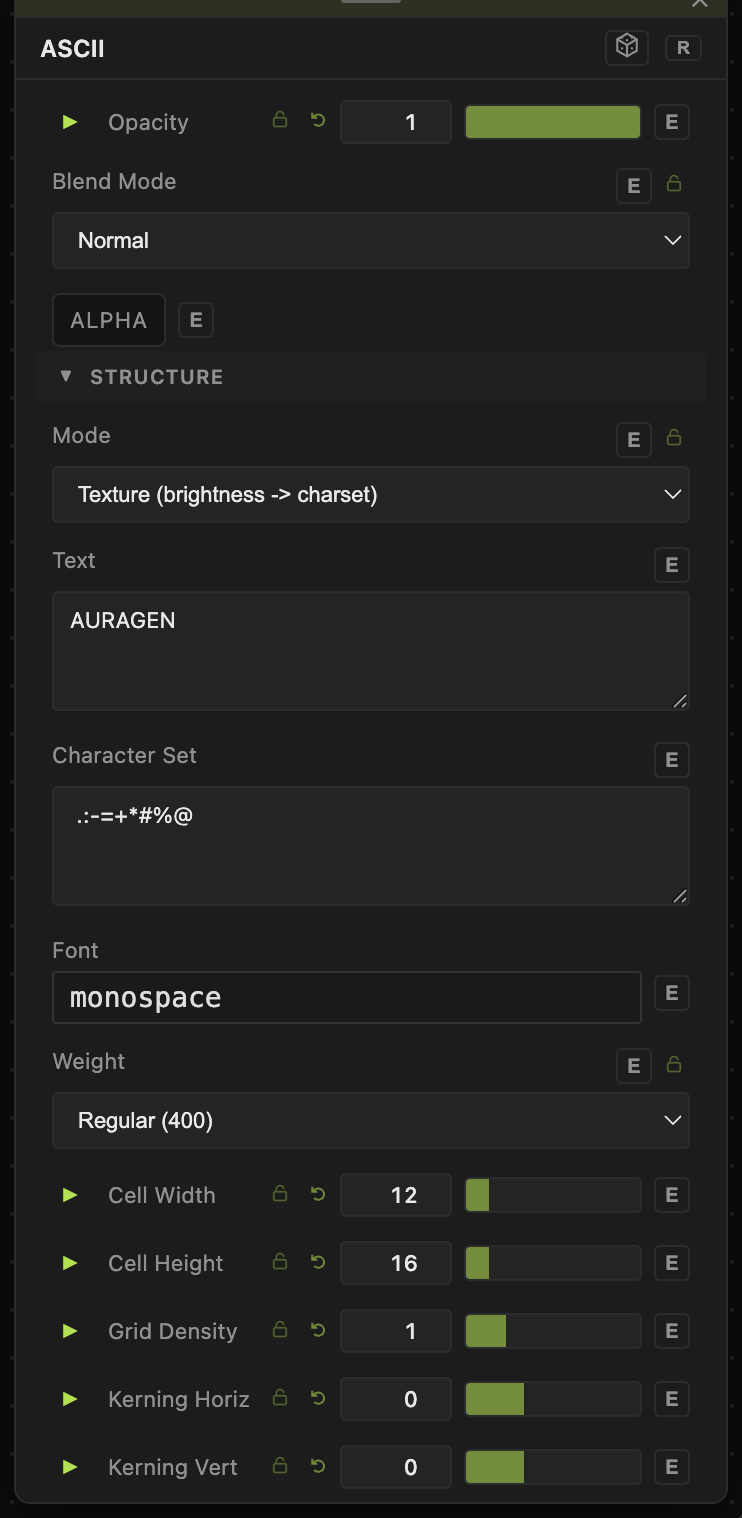
Opacity, Blend Mode, ALPHA — the standard operator header.
Structure
- Mode — Texture (brightness -> charset) samples the input per cell and picks a character by luminance. Sequential (typed text) lays the Text string across cells in reading order instead, ignoring brightness and the character set; newlines force a row break.
- Text (default
AURAGEN) — the string used in Sequential mode. - Character Set (default
.:-=+*#%@) — the lookup used in Texture mode, ordered dark to light. Cell brightness indexes into this string, so reordering or replacing characters restyles the whole output. - Font (default
monospace) — any font family available to the system. Weight — Regular (400) through Black (900). - Cell Width (4–64, default 12) / Cell Height (4–96, default 16) — the grid cell size in pixels; together they set each cell's aspect ratio.
- Grid Density (0.1–4, default 1) — single-knob density that divides both cell dimensions. Above 1 gives more, smaller glyphs; below 1 gives fewer, larger ones.
- Kerning Horiz / Kerning Vert (−16 to 32) — extra spacing between cells without rescaling the glyphs.
- Glyph Scale (0.1–2, default 0.95) — glyph size relative to its cell. Below 1 leaves gaps; above 1 makes glyphs overlap.
- Rnd Amount (0–200, default 0) — per-cell randomization strength. Rnd Type picks what gets randomized: the glyph's Position, the Glyph choice itself, or both.
- Dark Scale / Light Scale (0–4, default 1/1) — per-cell glyph scale driven by the input's luminance: cells at black render at Dark Scale, cells at white at Light Scale. The defaults disable the effect.
0 / 2makes glyphs vanish in shadows and double in highlights; swapping the values inverts the mapping. With no input wired, a built-in procedural noise drives the same warp — Noise Density sets its scale. - Density Scale (−1 to 1, default 0) — radial size gradient: positive grows glyphs toward the screen center, negative shrinks them there.
- Inherit Source Color — colors each glyph from the input texture instead of Text Color. Use it when piping in a color image or video.
- Invert Mapping — flips the brightness-to-charset mapping so dark cells pick light characters.
Dynamics
- Rnd Speed (0–20, default 0) — animation rate of the per-cell randomization. 0 freezes it.
- Noise Speed (0–2, default 0) — animation rate of the built-in scale-warp noise (only relevant with no input wired).
Output
- Text Color (default white) and Alpha — glyph fill. Hue / Saturation / Lightness — color adjustments applied on top, useful together with Inherit Source Color.
- Blur (0–64, default 0) — gaussian blur over the result, in pixels.
- Background / Background Alpha — the fill behind the glyphs. Drop Background Alpha to 0 to composite the glyphs over downstream content.
- Brightness Floor (0–1, default 0) — cells darker than this render the first charset entry, punching clean black regions into the output.
Every slider has a per-parameter animation bar, so any of these can be animated, audio-driven, or MIDI-mapped — see Parameters and Controls.
Troubleshooting
Dark Scale / Light Scale sliders do nothing — they are equal (both default to 1). The effect is the difference between the two endpoints.
Everything is one color despite a colorful input — turn on Inherit Source Color; by default glyphs use the flat Text Color.